
At Pluginizer, we understand the importance of optimizing your WooCommerce store for better performance and user experience.
One often overlooked aspect is the display of related products, which can sometimes hinder rather than help your online shop.
In this guide, we’ll show you how to remove WooCommerce related products and explain why it might benefit your store.
We’ll cover various methods, from using WordPress functions to leveraging WooCommerce settings, ensuring you find the best approach for your needs.
Why Remove Related Products in WooCommerce
Boost Page Load Speed
Page speed plays a vital role in e-commerce success. Google reports that 53% of visits are abandoned if a mobile site takes longer than 3 seconds to load. The removal of related products cuts down HTTP requests and database queries, which can significantly reduce your load time (often by several hundred milliseconds).

Enhance User Experience
A cluttered product page often overwhelms customers. The Baymard Institute found that 42% of users consider product pages too complex. The removal of related products creates a cleaner, more focused layout. This streamlined approach guides customers towards making a purchase decision without unnecessary distractions.
Focus Customer Attention
When you eliminate related products, you create a single-product focus. This focused approach can lead to higher conversion rates. Invesp’s study showed that well-curated product recommendations can increase conversion rates by up to 150%. However, poorly matched related products might do more harm than good.
Reduce Cart Abandonment
Cart abandonment remains a significant issue in e-commerce, with rates averaging around 69.8% (according to Baymard Institute). The removal of related products from the checkout process eliminates distractions that could lead to abandoned carts. This focused approach helps keep customers on track to complete their purchase.
Improve Overall Store Performance
The removal of related products can have a ripple effect on your store’s overall performance. It can lead to improved site speed, better user engagement, and potentially higher sales. However, it’s important to note that this strategy isn’t a one-size-fits-all solution. We recommend A/B testing this change on your store to see if it improves your specific metrics.
Now that we’ve explored the potential benefits of removing related products, let’s dive into the various methods you can use to implement this change in your WooCommerce store.
How to Remove Related Products in WooCommerce
At Pluginizer, we understand the challenges WooCommerce store owners face when deciding to remove related products. We’ve compiled the most effective methods to help you make this change.
Using WordPress Functions
One of the most straightforward ways to remove related products involves adding a simple code snippet to your theme’s functions.php file. This method uses the remove_action() function to prevent WooCommerce from displaying related products.
Add the following code to your theme’s functions.php file:
phpremove_action( ‘woocommerce_after_single_product_summary’, ‘woocommerce_output_related_products’, 20 );
This code removes the related products section from your product pages. However, exercise caution when editing theme files directly. Always create a child theme or use a code snippets plugin to preserve your changes during theme updates.
Leveraging WooCommerce Hooks
For those who prefer a more flexible approach, WooCommerce hooks offer a powerful way to customize your store. You can use the woocommerce_related_products_args filter to modify how related products appear or remove them entirely.
Here’s an example of how to use this filter to remove related products:
phpadd_filter( ‘woocommerce_related_products_args’, ‘remove_related_products’, 10 );function remove_related_products( $args ) { return array();}
This code sets the number of related products to zero, effectively removing them from your product pages.
CSS Techniques for Hiding Related Products
If you want a quick solution without touching any PHP code, you can use CSS to hide the related products section. This method doesn’t remove the related products from the backend, but it prevents them from appearing to your customers.
Add this CSS code to your theme’s stylesheet or the WordPress Customizer:
css.related.products { display: none;}
While this method offers a quick and easy solution, it’s worth noting that the related products still load in the background (which might not fully address performance concerns).
Considerations Before Implementation
Before you remove related products, consider the following:
- Test on a staging site first. For dynamic data-sensitive sites, it’s recommended to manually replicate the tested changes on the live site to avoid data loss or conflicts.
- Evaluate your specific business needs and customer preferences.
- Monitor your site’s performance and user behavior after making the change.
Now that we’ve explored various methods to remove related products, let’s move on to a step-by-step guide that will walk you through the process in detail.
How to Remove Related Products Step by Step
Back Up Your Site
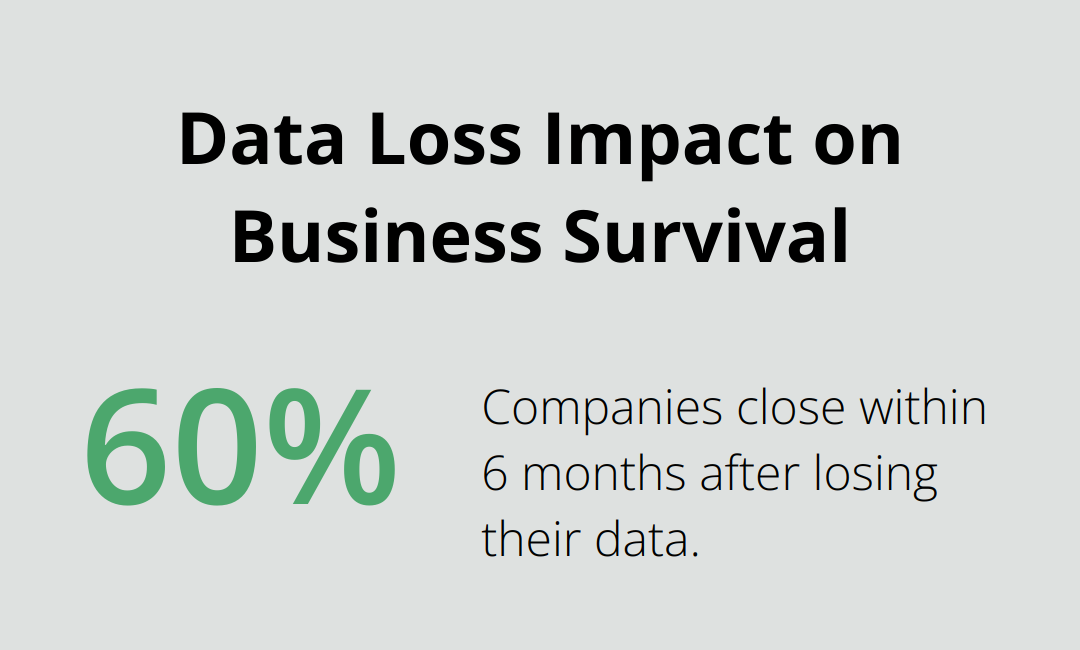
The first step in removing related products is to create a backup of your site. A survey by CodeGuard revealed that 60% of companies that lose their data close within 6 months. Use a reliable backup plugin or your hosting provider’s backup service to create a full site backup.
Create a Child Theme
To remove related products, you’ll need to edit your theme’s functions.php file. However, direct edits to this file can be risky. Create a child theme to ensure your changes won’t be overwritten during theme updates.
Follow these steps to create a child theme:
- Create a new folder in your wp-content/themes directory
- Name it yourthemename-child
- Create a style.css file in this folder with the necessary theme information
- Create a functions.php file in the same folder
In your new functions.php file, add this code:
phpremove_action( ‘woocommerce_after_single_product_summary’, ‘woocommerce_output_related_products’, 20 );
This code snippet removes the related products section from your product pages.
Test on a Staging Site
Always test changes on a staging site first. According to WP Engine, 25% of WordPress users don’t use staging environments (which risks potential issues on live sites). Create a staging copy of your site and apply the changes there.
Monitor your staging site for any unintended consequences. Check page load times, overall site functionality, and the appearance of your product pages. Tools like GTmetrix or Pingdom can help you measure performance improvements.
Implement on Your Live Site
Once you confirm everything works correctly on your staging site, implement the changes on your live site. Follow these steps:
- Upload your child theme to your live site’s wp-content/themes directory
- Activate the child theme from your WordPress dashboard
- Clear your site’s cache and any CDN caches
After implementation, monitor your site’s performance and user behavior closely. Tools like Google Analytics can help you track metrics such as bounce rate, time on page, and conversion rates.
Monitor and Adjust
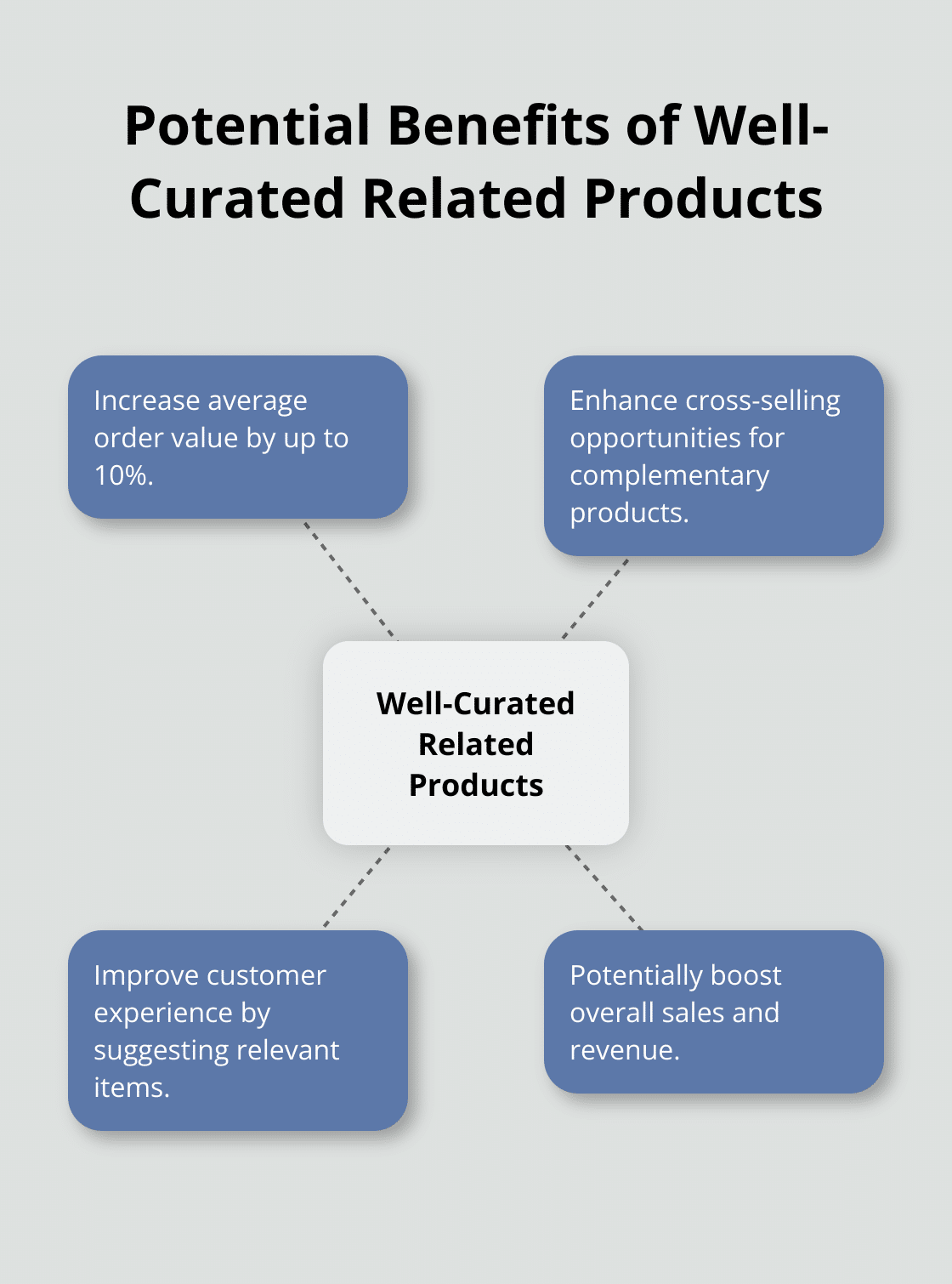
The removal of related products might not be the best solution for every store. Some businesses report up to a 10% increase in average order value when using well-curated related products. Try A/B testing to determine the best approach for your specific situation.
Final Thoughts
The removal of related products in WooCommerce can enhance your online store’s performance and user experience. You can streamline product pages, boost load speed, and potentially increase conversion rates. We explored various methods to remove WooCommerce related products, each offering unique benefits to suit different technical skills and needs.
Testing changes on a staging site helps identify potential issues before they affect your live store. After implementation, monitor your site’s performance and user behavior to ensure the changes have the desired effect. Optimizing your WooCommerce store is an ongoing process, and removing related products is just one of many strategies you can employ.
At Pluginizer, we offer unlimited access to over 15,000 premium plugins and themes, allowing you to unlock the full potential of your website. Our platform empowers you to create a truly optimized and high-performing online store. The key to a successful e-commerce site lies in continuous improvement and adaptation to your customers’ needs.