

At Pluginizer, we know that mastering WooCommerce’s Add to Cart hook is essential for store owners who want to customize their checkout process.
This powerful feature allows you to modify cart behavior, add custom fields, and integrate third-party services seamlessly.
In this guide, we’ll show you how to implement and leverage the Add to Cart hook in WooCommerce, step by step.
What Is the WooCommerce Add to Cart Hook?
Definition and Functionality
The WooCommerce Add to Cart hook (‘woocommerce_add_to_cart’) is a powerful tool that triggers when a customer adds a product to their cart. This hook allows developers to customize the shopping experience in online stores. There are two types of hook: actions and filters. Action Hooks allow you to insert custom code at various points (wherever the hook is run).
Customizing Your WooCommerce Store
The Add to Cart hook tailors your WooCommerce store to meet specific business needs. It modifies the default behavior of the cart, adds custom functionality, and creates a unique shopping experience for customers.
You can use this hook to:
- Apply automatic discounts for certain products
- Trigger actions (e.g., notifying your sales team when a high-value item is added)
- Implement cross-selling strategies
Practical Applications
Cross-Selling Implementation
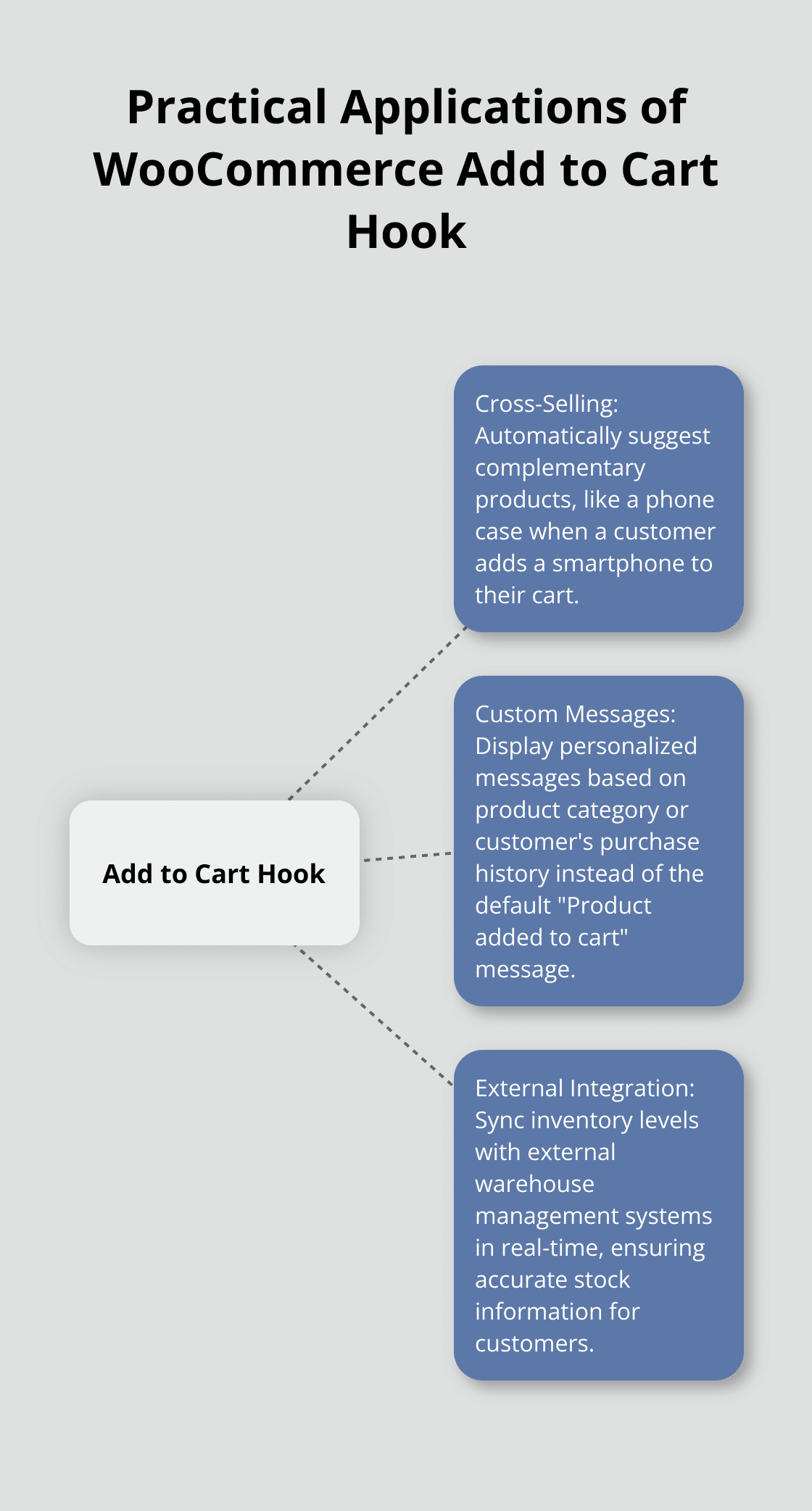
The Add to Cart hook enables programmatic addition of complementary products. For instance, when a customer adds a smartphone to their cart, you could automatically suggest a phone case or screen protector.
Custom Cart Messages
Instead of the default “Product added to cart” message, you can display personalized messages based on product category or customer’s purchase history.
External System Integration
The hook allows integration with external systems. You could sync inventory levels with an external warehouse management system in real-time, ensuring accurate stock information for customers.
Performance Considerations
While the Add to Cart hook offers extensive customization options, it’s important to consider performance implications. Essential scaling strategies, hosting requirements, and performance tips are crucial to maintain speed during traffic spikes for your growing online store. Thorough testing and site speed monitoring after implementing custom functionality using this hook is recommended.
Many WooCommerce stores have improved their conversion rates by effectively utilizing the Add to Cart hook. However, striking a balance between customization and performance ensures the best possible user experience.
Now that we’ve explored the Add to Cart hook’s capabilities and applications, let’s move on to the step-by-step guide for implementing this powerful feature in your WooCommerce store.
How to Implement the Add to Cart Hook in WooCommerce
Understanding the Add to Cart Hook
Hooks, actions and filters are powerful tools that allow you to modify and extend the capabilities of your WooCommerce site without altering the core code. The Add to Cart hook in WooCommerce (‘woocommerce_add_to_cart’) triggers when a customer adds a product to their cart. This powerful feature allows you to customize the shopping experience in your online store.
Locating the Add to Cart Hook
You don’t need to physically locate the Add to Cart hook in WooCommerce files. Instead, you’ll reference it in your custom code. This approach ensures your modifications remain intact even when WooCommerce updates.
Creating Your Custom Function
Write a custom function that will execute when the Add to Cart hook is triggered. Here’s a basic example:
phpfunction custom_add_to_cart_action($cart_item_key, $product_id, $quantity, $variation_id, $variation, $cart_item_data) { // Your custom code here error_log(‘Product added to cart: ‘ . $product_id);}add_action(‘woocommerce_add_to_cart’, ‘custom_add_to_cart_action’, 10, 6);
This function logs the product ID whenever an item is added to the cart. Replace the error_log line with any custom functionality you want to implement.
Implementing Your Custom Code
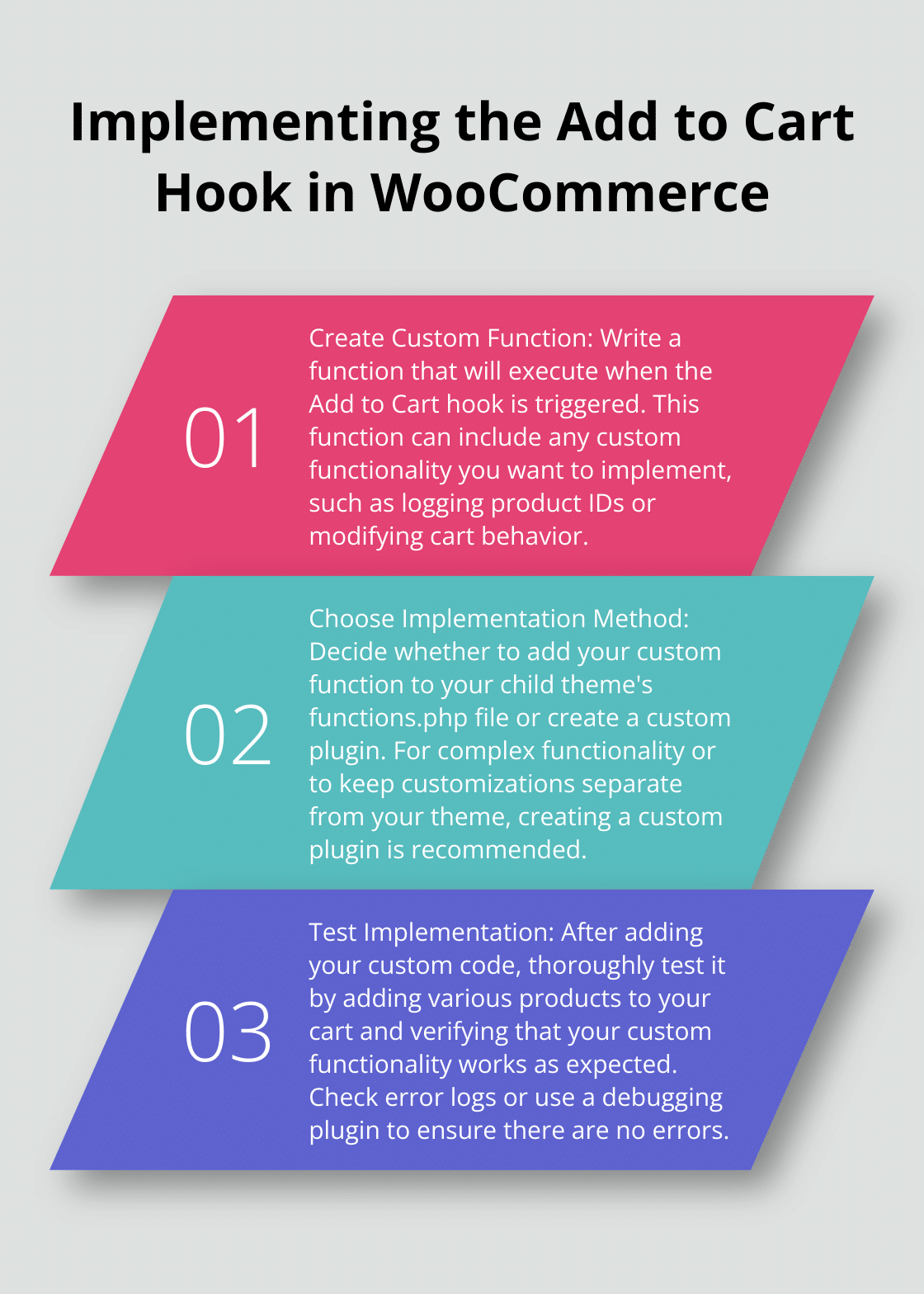
Add your custom function to your WordPress site using one of these methods:
- Add to functions.php: If you use a child theme (which we recommend), add your custom function to the functions.php file of your child theme.
- Create a custom plugin: For more complex functionality or to keep your customizations separate from your theme, create a custom plugin.
Here’s a basic structure for a custom plugin:
“`php<?php/*Plugin Name: Custom WooCommerce Add to Cart HookDescription: Customizes the Add to Cart functionality in WooCommerceVersion: 1.0Author: Your Name
*/
function custom_add_to_cart_action($cart_item_key, $product_id, $quantity, $variation_id, $variation, $cart_item_data) { // Your custom code here}add_action(‘woocommerce_add_to_cart’, ‘custom_add_to_cart_action’, 10, 6);“`
Save this code in a PHP file (e.g., custom-woocommerce-hook.php) and upload it to your wp-content/plugins directory. Then activate the plugin from your WordPress admin panel.
Testing Your Implementation
After adding your custom code, test it thoroughly. Add various products to your cart and verify that your custom functionality works as expected. Check your error logs or use a debugging plugin to ensure there are no errors.
The Add to Cart hook is a powerful tool, but use it judiciously. Overloading it with complex operations can slow down your site. Always prioritize performance and user experience when implementing custom functionality.
Now that you’ve learned how to implement the Add to Cart hook, let’s explore some advanced techniques to further customize your WooCommerce store and enhance your customers’ shopping experience.
Supercharging Your WooCommerce Store with Advanced Add to Cart Techniques
Dynamic Pricing Based on Product Type
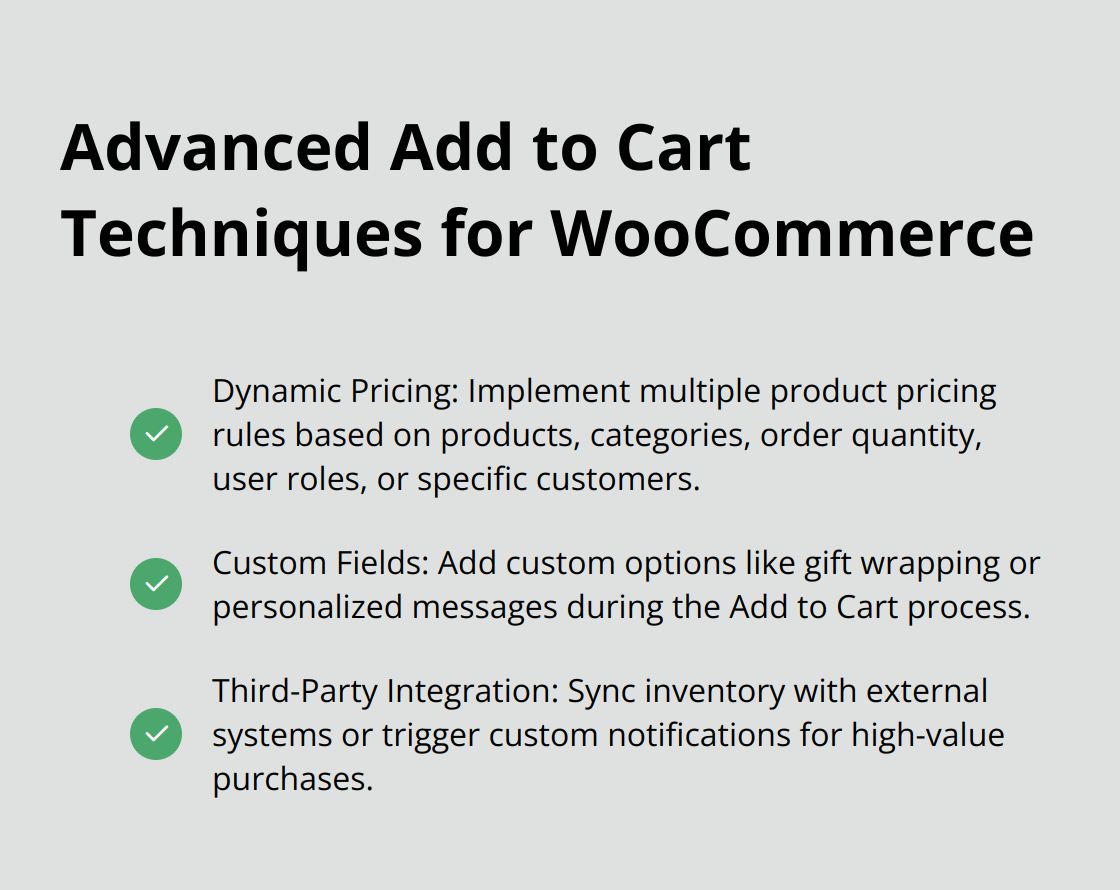
WooCommerce stores can transform their customer experience using advanced Add to Cart techniques. One effective way to boost sales is to implement dynamic pricing. The Add to Cart hook allows you to set multiple product pricing rules based on products, categories, order quantity, user roles, specific customers and more.
Here’s a snippet to start with:
“`phpfunction dynamic_pricing($cart_object) { if ( is_admin() && ! defined( ‘DOING_AJAX’ ) ) return;
foreach ( $cart_object->get_cart() as $key => $value ) { $product = $value['data']; if ( $product->get_category() == 'electronics' && $value['quantity'] >= 3 ) { $price = $product->get_price(); $value['data']->set_price( $price * 0.9 ); }}
}add_action( ‘woocommerce_before_calculate_totals’, ‘dynamic_pricing’, 10, 1 );“`
This code applies a 10% discount to electronics products when three or more are added to the cart. You should adjust the category and discount percentage to fit your store’s needs.
Enhancing User Experience with Custom Fields
Custom fields during the Add to Cart process can significantly improve user experience and provide valuable data for your business. You could add a gift wrapping option or a personalized message field for certain product types.
Implement this feature with the following code:
phpfunction add_custom_field_to_cart( $cart_item_data, $product_id, $variation_id ) { if ( isset( $_POST[‘gift_wrap’] ) ) { $cart_item_data[‘gift_wrap’] = sanitize_text_field( $_POST[‘gift_wrap’] ); } return $cart_item_data;}add_filter( ‘woocommerce_add_cart_item_data’, ‘add_custom_field_to_cart’, 10, 3 );
This snippet adds a gift wrapping option to your Add to Cart process. You’ll need to create a corresponding form field on your product page to capture this information.
Integrating Third-Party Services for Enhanced Functionality
Third-party service integration can add powerful features to your WooCommerce store. You could use the Add to Cart hook to sync inventory with an external system or trigger a custom email notification for high-value purchases.
Here’s an example of how to integrate with a hypothetical inventory management API:
“`phpfunction sync_inventory_on_add_to_cart( $cart_item_key, $product_id, $quantity ) { $api_endpoint = ‘https://api.inventorymanager.com/update’; $response = wp_remote_post( $api_endpoint, array( ‘body’ => array( ‘product_id’ => $product_id, ‘quantity’ => $quantity, ‘action’ => ‘reserve’ ) ));
if ( is_wp_error( $response ) ) { error_log( 'Inventory sync failed: ' . $response->get_error_message() );}
}add_action( ‘woocommerce_add_to_cart’, ‘sync_inventory_on_add_to_cart’, 10, 3 );“`
This code sends a request to an external inventory management system whenever a product is added to the cart, which helps to prevent overselling.
These advanced techniques can significantly enhance your WooCommerce store (but you must implement them carefully). Always test thoroughly in a staging environment before deploying to your live site. Use these hooks judiciously to maintain optimal site performance.
Final Thoughts
The Add to Cart hook in WooCommerce transforms online stores. This powerful tool customizes shopping experiences, implements dynamic pricing, and integrates third-party services. Store owners who master the Add to Cart hook WooCommerce offers can create unique e-commerce experiences that stand out in a competitive landscape.
Experimentation with the Add to Cart hook unlocks its full potential. Start with small changes, test thoroughly, and gradually implement advanced techniques. The right balance between customization and performance will lead to increased sales, improved customer satisfaction, and more efficient store operations.
Pluginizer provides access to over 15,000 premium plugins and themes to extend store functionality. These tools complement custom Add to Cart hook implementations and help create engaging shopping experiences. Embrace new technologies and techniques to stay ahead in the evolving world of e-commerce.