

WooCommerce powers over 28% of all online stores worldwide, making regular updates essential for security and performance. Outdated versions expose your store to vulnerabilities that hackers actively exploit.
We at Pluginizer see many store owners postpone their WooCommerce update due to fear of breaking their site. This guide walks you through the entire process safely, from backup to testing, so you can keep your store secure without downtime.
Why Updating WooCommerce is Important
Security Vulnerabilities and Patches
Hackers target WooCommerce stores that run outdated versions because they know exactly which vulnerabilities exist. WPBeginner research shows that 73% of WordPress sites contain at least one vulnerability that cybercriminals could exploit. Each WooCommerce security update patches specific attack vectors that hackers actively use to steal customer data, inject malicious code, or take control of your store.

Automated scanning tools detect known exploits within hours of their discovery. Store owners who wait even a few weeks to update leave their businesses exposed to these threats. Security patches close these attack vectors immediately, but only if you apply them promptly.
New Features and Performance Improvements
WooCommerce updates consistently improve load speeds and database efficiency, which directly impacts your revenue. Studies show that each 100ms improvement in homepage load time results in a 1.11% increase in conversion. Recent WooCommerce versions have optimized checkout processes, reduced database queries, and improved cache mechanisms.
These improvements can cut your page load times by 15-30% without any additional optimization work. Your customers notice faster product pages, quicker checkout flows, and smoother mobile experiences that keep them on your site instead of leaving for competitors. Performance gains translate directly into higher conversion rates and increased sales.
Compatibility with WordPress and Plugins
WordPress releases updates every few months, and WooCommerce must stay compatible with these core changes to function properly. Outdated WooCommerce versions often create conflicts with popular plugins like Yoast SEO, Elementor, or payment gateways that have updated their code to work with current WordPress versions.
These compatibility issues cause checkout failures, broken product displays, or complete site crashes that cost you sales. Major hosting providers (like WP Engine and Kinsta) also optimize their servers for current WooCommerce versions, which means outdated stores run slower and less reliably on modern hosting infrastructure.
Now that you understand why updates matter for your store’s security, performance, and compatibility, let’s walk through the exact process to update WooCommerce safely without breaking your site.
How Do You Update WooCommerce Safely
Create a Complete Backup First
Never update WooCommerce without a full backup of your files and database. Automated backup services like Jetpack provide unlimited storage and instant restoration capabilities. Manual backups require you to download your database through phpMyAdmin and use SFTP to copy theme and plugin files, but this process takes 45-60 minutes for medium-sized stores.
Automated solutions complete backups in under 10 minutes and store multiple restore points. WooCommerce stores frequently experience update-related issues, which makes backups your safety net against revenue loss when updates fail.
Update Through Your WordPress Dashboard
Navigate to Plugins in your WordPress admin and locate WooCommerce in your plugin list. Click the update notification next to WooCommerce to start the automatic update process. WordPress downloads the new version and replaces files within 2-3 minutes for most stores.
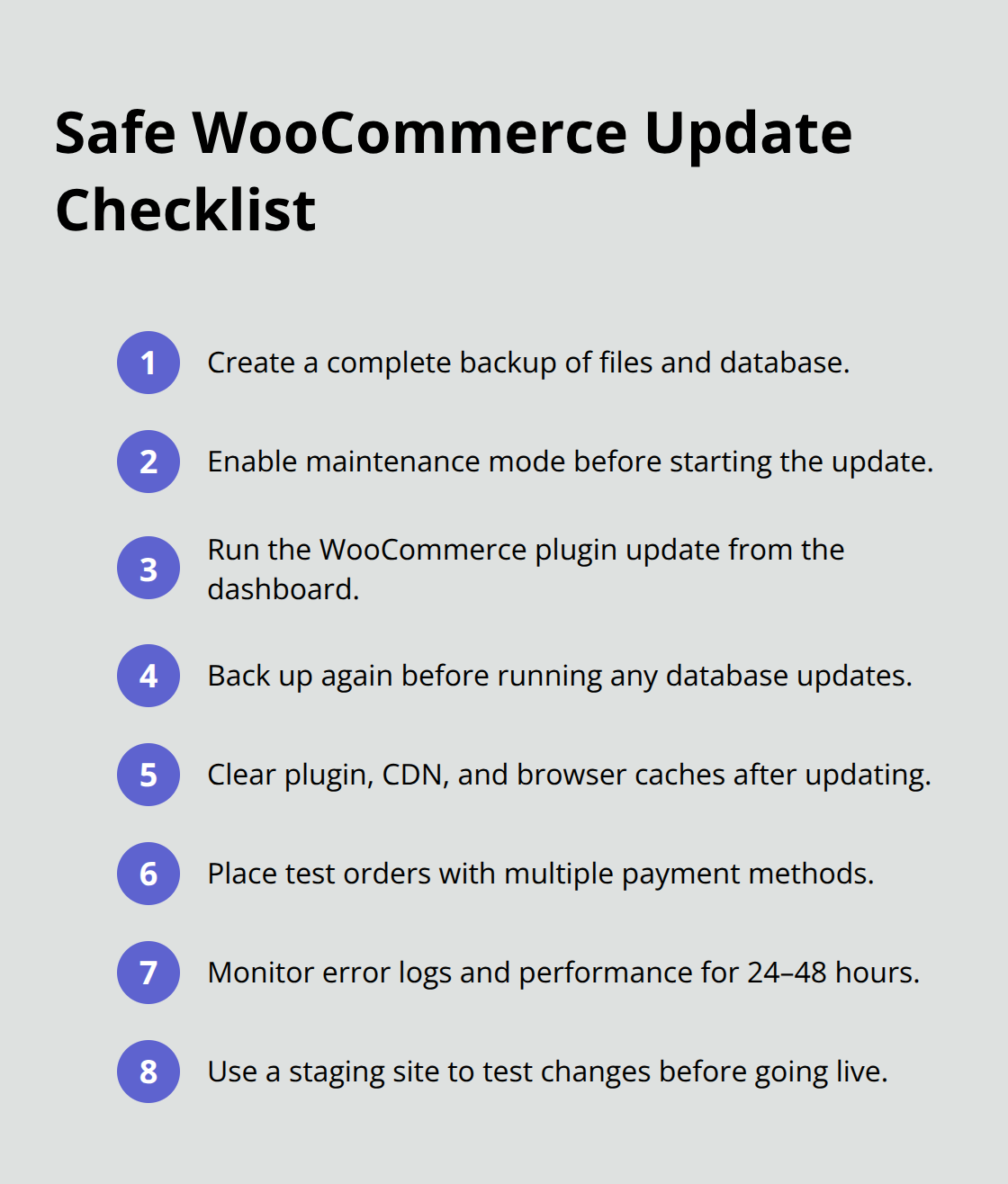
Enter maintenance mode before you click update to prevent customers from placing orders during the process, as transactions placed during updates often fail or get lost. WooCommerce may prompt you to update the database after the plugin update completes – always backup again before you click this database update button, as it reorganizes how your products, orders, and customer data get stored.
Test Everything After You Update
Check your product pages, shopping cart, checkout process, and payment gateways immediately after you update. Test placing a test order with different payment methods to verify transactions process correctly. Clear all caches through your caching plugin and CDN to prevent customers from seeing outdated versions of your site.
Monitor your error logs for 24-48 hours after you update, as some compatibility issues only surface under specific conditions or with certain customer actions. Performance monitoring tools often detect improvements after WooCommerce updates, but you should verify that your specific customizations still function properly.
Even successful updates can create unexpected problems with third-party extensions and custom themes, which we’ll address in the next section.
What Issues Can WooCommerce Updates Cause
Plugin Conflicts Break Core Functions
Third-party plugins cause significant WooCommerce update failures, with Wordfence Security providing comprehensive protection including endpoint firewall, malware scanner, and robust login security features. Payment gateways, inventory management systems, and custom checkout plugins often break when WooCommerce changes its core functions. Stripe and PayPal extensions frequently stop transaction processing after major updates because they rely on specific WooCommerce hooks that get modified.
The worst failures happen with plugins that haven’t received updates in 6+ months. These outdated extensions trigger fatal PHP errors that crash your entire checkout process and cause immediate revenue loss. Always check plugin compatibility on WordPress.org before you update WooCommerce, and contact plugin developers directly for compatibility confirmation if their last update was more than 90 days ago.
Database Errors Lock Your Store
WooCommerce database updates reorganize product data, customer information, and order history into new table structures. Failed database migrations corrupt this data and prevent customers from accessing product pages or completing purchases. WordPress automatically creates database backups during these migrations, but corrupted tables require manual restoration that can take 4-8 hours.

Database timeout errors occur most frequently on shared hosting plans with limited processing power. Large stores with 10,000+ products experience these failures more often because the migration process overwhelms server resources. Switch to maintenance mode and upgrade to dedicated hosting temporarily if your database update fails repeatedly.
Speed Problems After Updates
WooCommerce updates sometimes conflict with existing cache configurations and cause 40-60% slower page loads immediately after updates. Outdated cache plugins like W3 Total Cache create conflicts with new WooCommerce optimization features, which forces your server to process every page request without cache assistance.
Clear all cache layers after every WooCommerce update, including plugin cache, CDN cache, and browser cache. Monitor your site speed with GTmetrix for 48 hours post-update to catch performance degradation early. Sites that don’t clear caches properly experience 25% higher bounce rates because customers abandon slow-loading product pages.
Theme Compatibility Issues
Custom themes and child themes frequently break after WooCommerce updates because they rely on deprecated template files or outdated PHP functions. WooCommerce changes its template structure with each major release (version 3.0 to 4.0, for example), requiring you to determine what templates to update, make backups of old templates, and restore customizations.
Theme developers often take 2-4 weeks to release compatibility updates after new WooCommerce versions launch. Your store layout may appear broken, product images might not display, or the checkout process could fail completely during this gap. Test your theme thoroughly on a staging site before you apply WooCommerce updates to your live store.
Final Thoughts
Regular WooCommerce updates protect your store from security threats while they deliver performance improvements that boost conversion rates. The 28% of online stores powered by WooCommerce that stay current experience fewer security incidents and faster load times that directly increase sales. Proper backup procedures and testing updates on staging sites prevent the costly downtime that affects 40% of stores during failed updates.
We at Pluginizer recommend that you establish a monthly WooCommerce update schedule during low-traffic periods to minimize customer disruption. Professional maintenance becomes essential when you manage multiple stores or complex customizations. Pluginizer provides unlimited access to over 15,000 premium plugins and themes with continuous updates, which helps you maintain compatibility across all your WooCommerce extensions through a single subscription.
The investment in proper update procedures pays for itself through improved security, better performance, and reduced emergency repair costs. Stores that postpone updates face exponentially higher risks of data breaches, compatibility failures, and revenue loss from extended downtime. Each successful WooCommerce update strengthens your store’s foundation and protects your business from the threats that target outdated installations.