

Managing plugin visibility across your WordPress multisite network gives you complete control over what site administrators can access. When you need to WordPress multisite hide plugins from specific sites, you protect your network’s security and maintain consistent functionality.
We at Pluginizer understand that multisite administrators often struggle with plugin management complexity. This guide shows you exactly how to hide plugins effectively while maintaining smooth network operations.
How Does Plugin Access Work in WordPress Multisite
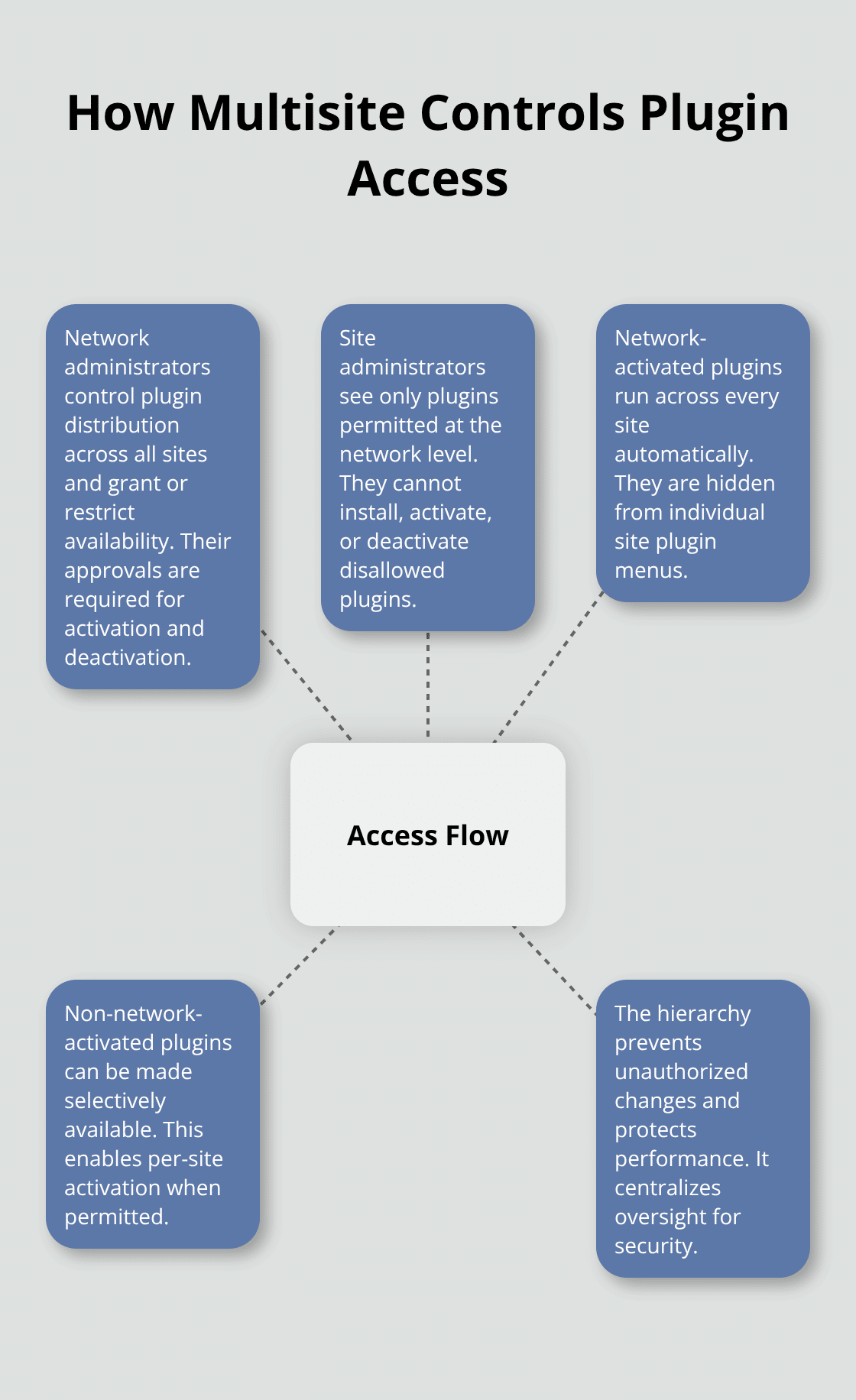
WordPress multisite creates two distinct administrative layers that change how plugins operate compared to single-site installations. Network administrators control plugin distribution across all sites, while individual site administrators receive limited access based on network-level permissions. This hierarchy prevents site administrators from installing, activating, or deactivating plugins without explicit network administrator approval.
Network-Level Plugin Control
Network administrators control plugin visibility through the Network Admin dashboard, where they decide which plugins appear in individual site administration panels. Network-activated plugins function across all network sites automatically, while site administrators can activate available plugins for their individual sites but cannot install new ones. Plugins that are not network-activated become available for individual site activation, but only if the network administrator permits this access.
This system prevents unauthorized plugin installations that could compromise network security or performance. The network administrator holds complete authority over which plugins each site can access, including premium plugin collections that span multiple sites.
Site Administrator Access Restrictions
Site administrators can only see and manage plugins that network administrators specifically make available to them. They cannot access the Plugins menu to install new plugins from the WordPress repository or upload custom plugins. Site administrators can only activate or deactivate plugins that appear in their individual site’s plugin list.
This restriction protects the network from potentially harmful or conflicting plugins while maintaining operational control at the network level. The WordPress core deliberately limits these permissions to prevent security vulnerabilities and maintain consistent functionality across the multisite network.
Plugin Visibility Mechanics
WordPress stores multisite plugin data differently than single-site installations. Network-activated plugins appear in the active_sitewide_plugins option, while site-specific plugins use the standard active_plugins option for each individual site. This separation allows network administrators to enforce specific plugins across all sites while giving selective control over others.
The system checks network permissions before displaying any plugin in site administrator dashboards. When you need even more granular control over plugin visibility, you’ll need to implement additional methods beyond the default WordPress multisite functionality.
How Can You Hide Plugins from Site Administrators
WordPress multisite provides several effective approaches to hide plugins from site administrators, from built-in network controls to custom code implementations. Network administrators can control plugin visibility through the Network Admin dashboard without additional code or plugins.
Network Admin Plugin Control Settings
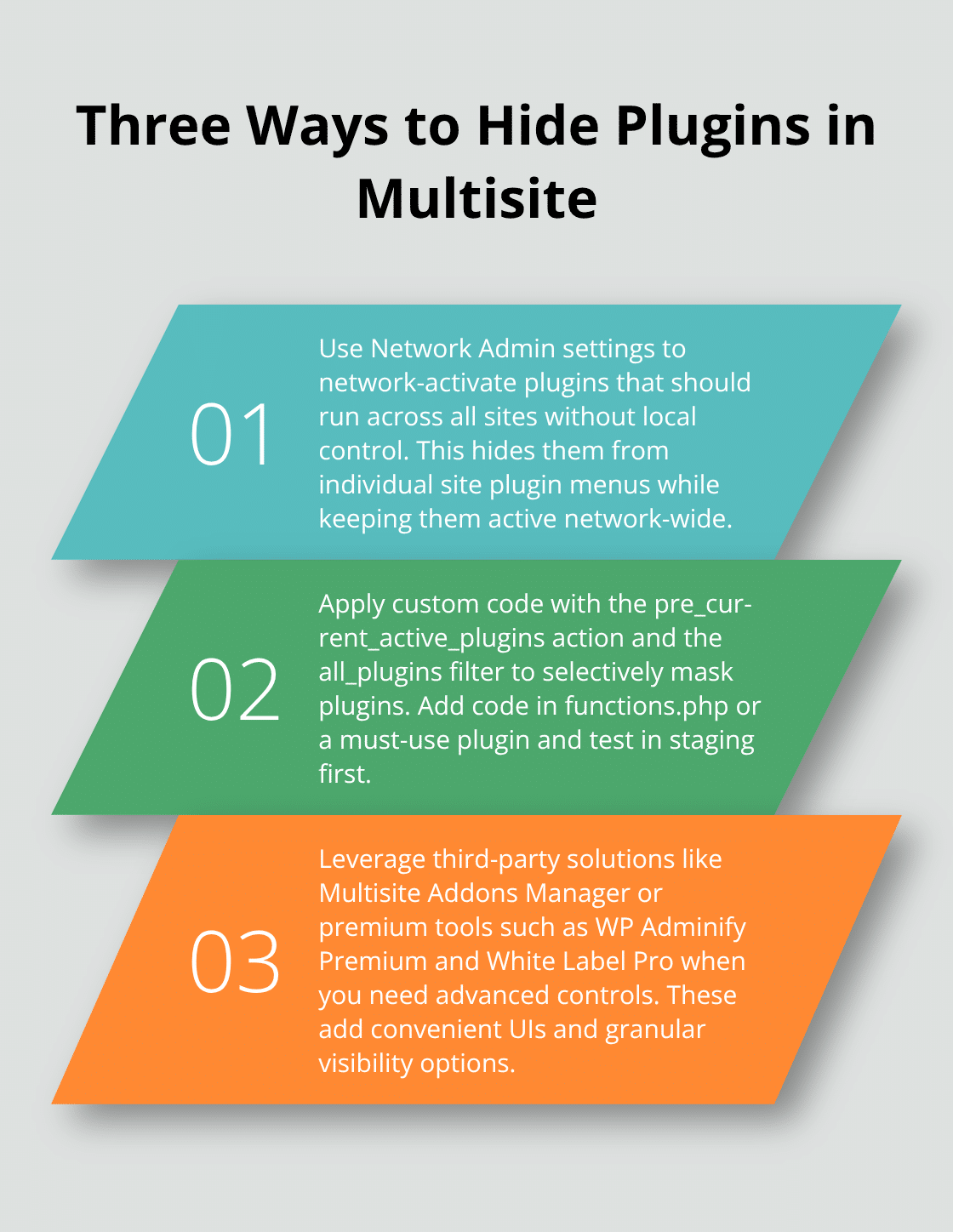
Network administrators hide plugins by managing activation settings through the Network Admin plugins page. When you network-activate a plugin, it becomes invisible to individual site administrators while it remains active across all sites. This approach works perfectly for plugins that should run network-wide without site administrator interference, such as security plugins or backup solutions.
WordPress automatically removes network-activated plugins from individual site plugin menus, which prevents site administrators from deactivating them. You can also choose to not network-activate certain plugins while you restrict their visibility through selective availability controls. This method requires no coding knowledge and provides immediate results across your entire multisite network.
Custom Code Implementation
The pre_current_active_plugins action hook offers precise control over plugin visibility for more advanced requirements. You add specific code to your theme’s functions.php file or a must-use plugin to selectively hide plugins from site administrator dashboards.
The all_plugins filter provides another powerful option for masking plugins in both Network and Site plugin lists simultaneously. WordPress stores multisite active plugins as associative arrays, which makes it straightforward to unset specific plugins using their directory paths (like plugin-directory/plugin-file.php).
This approach requires testing in staging environments before production deployment, but it delivers complete customization over which plugins appear for different user roles and site configurations.
Third-Party Plugin Solutions
The Multisite Addons Manager plugin provides advanced management capabilities beyond WordPress core functionality. It offers AJAX-powered interfaces and per-site plugin visibility controls with custom filtering views and strict capability verification for authorized users only.
Premium solutions like WP Adminify Premium and White Label Pro offer comprehensive admin customization features that include plugin hiding capabilities alongside dashboard branding and user role management tools.
Most multisite networks achieve their objectives through the built-in WordPress methods or simple code snippets rather than additional plugins that add complexity to the system. These native approaches typically provide sufficient control while maintaining network performance and simplicity.
Understanding these methods prepares you to implement the most appropriate solution for your specific network requirements and user management needs.
Which Plugins Should You Hide from Site Admins
Security-focused plugins like Wordfence, backup solutions, and network-wide performance optimization tools should always remain hidden from site administrators. These plugins affect the entire multisite network, and site administrator access creates security vulnerabilities and potential conflicts.
Network administrators should hide plugins that manage server resources, database operations, or security configurations since improper settings can compromise the entire network. Hide development and debug plugins like Query Monitor or Debug Bar from production site administrators to prevent accidental exposure of sensitive system information.
Essential Plugin Categories to Hide
Hide all plugins that control network-wide functionality from individual site administrators. Security plugins, caching solutions, and SEO management tools require network-level oversight to maintain consistent performance across all sites. Database optimization plugins and server monitoring tools should remain invisible to site administrators since these affect the entire hosting environment.
Performance monitoring plugins often contain sensitive server information that site administrators don’t need to access. Hide any plugin that modifies core WordPress functionality or manages user permissions across the network to prevent unauthorized changes.
Test Plugin Visibility Changes First
Always test plugin visibility implementations in staging environments before you apply changes to production networks. WordPress multisite plugin visibility changes can break site functionality if network-activated plugins have dependencies that site administrators previously managed.
Create a complete copy of your multisite network (including database tables like wp_blogs and wp_site_meta) to accurately test visibility modifications. Test different user roles including site administrators, editors, and contributors to verify that hidden plugins don’t affect their workflow capabilities.
Monitor error logs during test phases since some plugins may require specific visibility settings to function properly across multisite installations. WordPress core updates can sometimes affect plugin visibility settings, so regular testing prevents unexpected issues.
Maintain Updates for Hidden Plugins
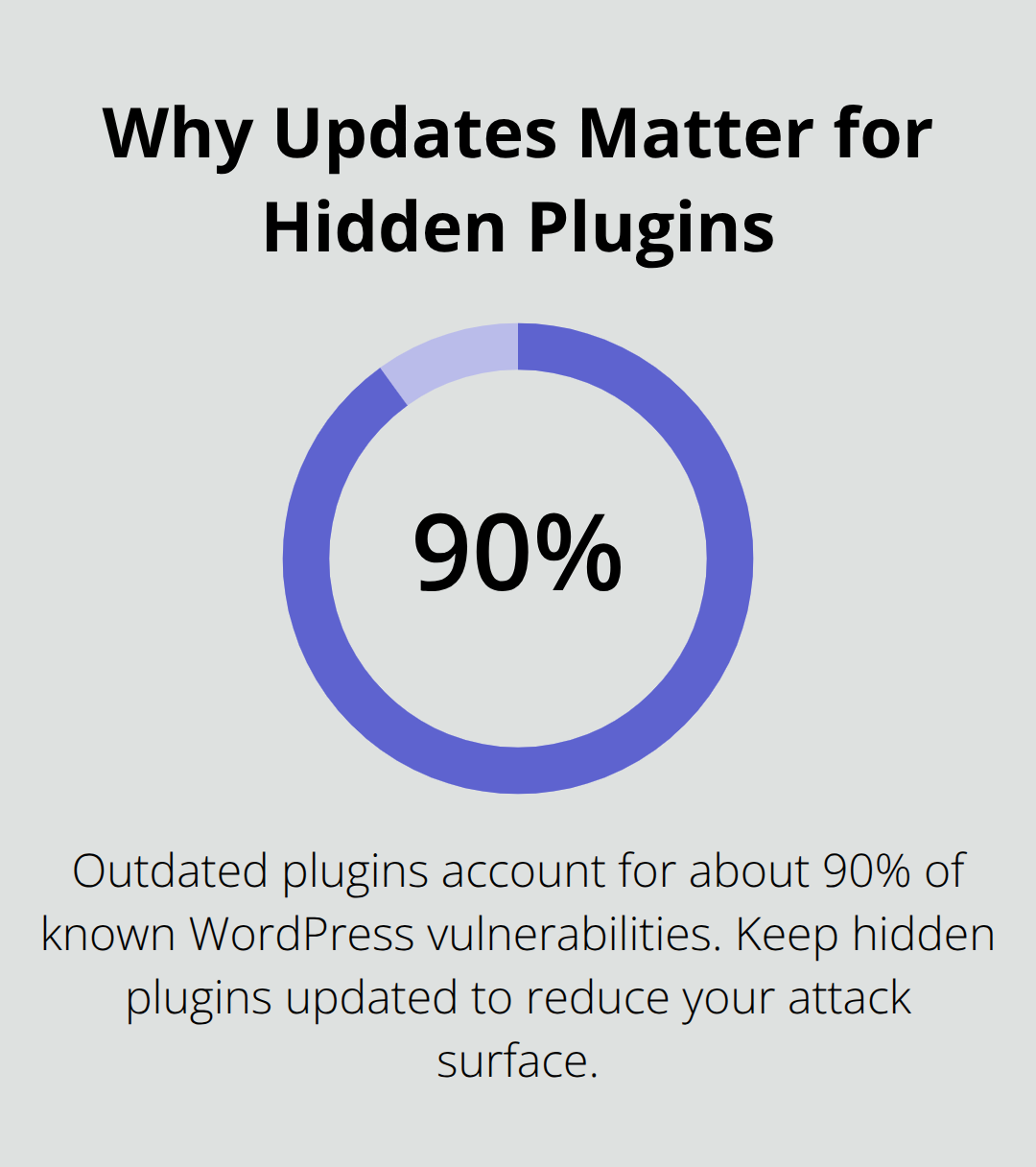
Hidden plugins still require regular updates and security monitoring despite their invisible status to site administrators. Outdated plugins are responsible for about 90% of known WordPress vulnerabilities, which makes update management critical for hidden plugins.
Network administrators must maintain detailed documentation of all hidden plugins including their purposes, update schedules, and dependencies. Schedule weekly reviews of hidden plugin status to identify security updates, compatibility issues, and performance impacts across the network.
Use automated monitoring tools to track hidden plugin vulnerabilities since site administrators cannot report issues they cannot see. WordPress plugin vulnerabilities often target outdated versions, so consistent update schedules protect your entire multisite network from security threats.
Final Thoughts
WordPress Multisite hide plugins functionality provides network administrators with complete control over their multisite environments through multiple proven methods. Network-activated plugins automatically disappear from site administrator dashboards, while custom code snippets that use hooks like pre_current_active_plugins deliver granular visibility control. Third-party solutions offer advanced management features, but most networks achieve their goals through WordPress core functionality.
Successful multisite plugin management requires you to hide security tools, performance plugins, and network-wide utilities from site administrators while you maintain regular updates and test procedures. Hidden plugins need consistent monitoring since site administrators cannot report issues they cannot see. You must implement plugin visibility controls gradually, starting with security-sensitive plugins before you expand to performance and development tools.
We at Pluginizer provide unlimited access to over 15,000 premium plugins and themes, which makes it easier to manage extensive plugin collections across multisite networks while you maintain proper visibility controls and licensing compliance. Pluginizer helps you streamline your WordPress multisite hide plugins strategy across your entire network. Proper plugin visibility control reduces security risks, prevents unauthorized changes, and maintains consistent functionality across your entire multisite network.