

Managing finances for your WooCommerce store becomes significantly easier when you connect it with QuickBooks Online. This integration eliminates hours of manual data entry while reducing accounting errors by up to 80%.
We at Pluginizer have helped thousands of store owners streamline their financial workflows through automated synchronization. The right integration setup transforms your accounting from a time-consuming task into an automated process.
Why WooCommerce QuickBooks Integration Saves Time and Money
WooCommerce connection with QuickBooks Online eliminates the tedious process of manual sales data transfer between platforms. Shopify research reveals that 54% of small business owners spend more than 10 hours monthly on bookkeeping tasks. The integration cuts this time investment dramatically through automatic order information, customer details, and payment record synchronization in real-time.

Businesses that use automated integrations report savings of up to 10 hours per month on financial reporting alone. This time reduction translates directly into cost savings, as business owners can focus on growth activities rather than data entry tasks.
Accuracy Improvements Through Automation
Manual data entry creates significant opportunities for human error in financial records. Research shows that businesses with integrations experience reduced manual errors through automated workflows. The automated synchronization between WooCommerce and QuickBooks prevents common mistakes like duplicate entries, incorrect amounts, and mismatched customer information.
Payment details, shipping charges, and tax calculations transfer automatically without human intervention. This automation maintains consistency across both platforms and eliminates the risk of transcription errors that plague manual data entry systems.
Tax Compliance Made Simple
QuickBooks integration handles complex tax calculations automatically and matches tax rates between WooCommerce and QuickBooks for accurate invoicing. The system tracks multi-state sales tax requirements and generates compliant reports for tax authorities without manual intervention.
Many small business owners feel overwhelmed by financial management without proper tools. Automated tax tracking through integration eliminates guesswork and reduces compliance risks as e-commerce continues to grow rapidly.
Real-Time Data Synchronization Benefits
Real-time synchronization keeps both platforms updated instantly when transactions occur. This immediate data transfer prevents discrepancies between WooCommerce transaction records and QuickBooks, which maintains accurate financial statements at all times.
The synchronization process handles inventory levels, customer information updates, and payment status changes automatically. Store owners can access current financial data from either platform without waiting for manual updates or batch processing delays.
With these automation benefits established, the next step involves choosing the right integration method for your specific business needs and technical requirements.
Which Integration Method Works Best
Store owners have three primary options for connecting WooCommerce with QuickBooks Online, each serving different business requirements and technical capabilities. The QuickBooks Commerce Connector provides the most straightforward setup process, requires no technical expertise, and allows you to connect WooCommerce and QuickBooks Online within minutes. This native solution handles basic synchronization needs effectively for stores that process under 1,000 orders monthly, though it offers limited customization options for complex workflows.
Third-Party Plugin Solutions
Third-party integration plugins like MyWorks Sync and OneSaas deliver more robust functionality than native connectors. MyWorks Sync efficiently handles inventory and pricing management with automatic syncing of product, inventory, pricing and payment data between QuickBooks and WooCommerce, while OneSaas processes data hourly with automated sales tax mapping. These solutions cost between $15-50 monthly but provide advanced features like inventory level synchronization and detailed error logs (which help identify problems quickly). WooCommerce stores with complex product catalogs or multi-location inventory benefit significantly from these enhanced capabilities.
Custom API Development Options
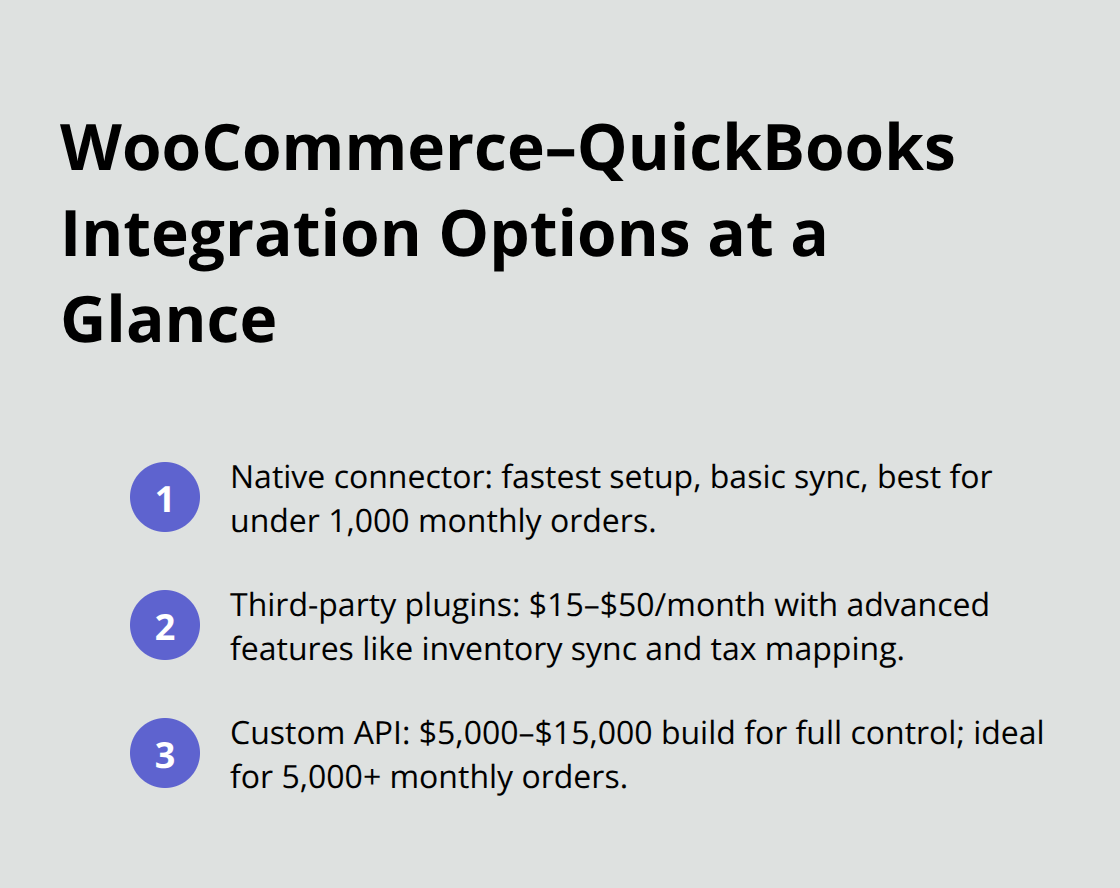
Custom API solutions work best for large-scale operations with unique requirements that standard plugins cannot address. Development costs range from $5,000-15,000 but deliver complete control over data mapping and synchronization rules. Businesses that process over 5,000 orders monthly or require specialized reports should consider custom development. QuickBooks Online API supports unlimited customization options, though implementation requires dedicated developer resources and ongoing maintenance costs (typically 15-20% of initial development costs annually).
Native Connector Limitations
The QuickBooks Commerce Connector handles basic order synchronization but lacks advanced features like partial refund processing or detailed inventory management. Small businesses with simple product catalogs find this solution adequate, while growing stores quickly outgrow its capabilities. The connector processes data in batches rather than real-time, which can create delays in financial reporting during peak sales periods.
Once you select the appropriate integration method for your business needs, the next step involves setting up the actual connection between your WooCommerce store and QuickBooks Online account.
How Do You Connect WooCommerce to QuickBooks Online
The connection process begins with account preparation in QuickBooks Online. Access your QuickBooks Online dashboard and navigate to the Apps menu to install the WooCommerce Connector by Intuit. Your WordPress site must run version 4.4 or above with WooCommerce version 3.5 or higher for compatibility. Enable pretty permalinks in WordPress settings because default permalinks block the integration from proper function.
Once you install the connector, click Connect and enter your complete WooCommerce domain URL (without the /wp-admin suffix). The system prompts for your WooCommerce login credentials to authorize the connection between both platforms.
Data Mapping Configuration Requirements
Configure your integration settings immediately after connection to prevent synchronization errors. Set your timezone, integration start date, and choose whether orders appear as sales invoices or sales receipts in QuickBooks. Create dedicated items for shipping charges and discounts in WooCommerce to track these revenues separately.
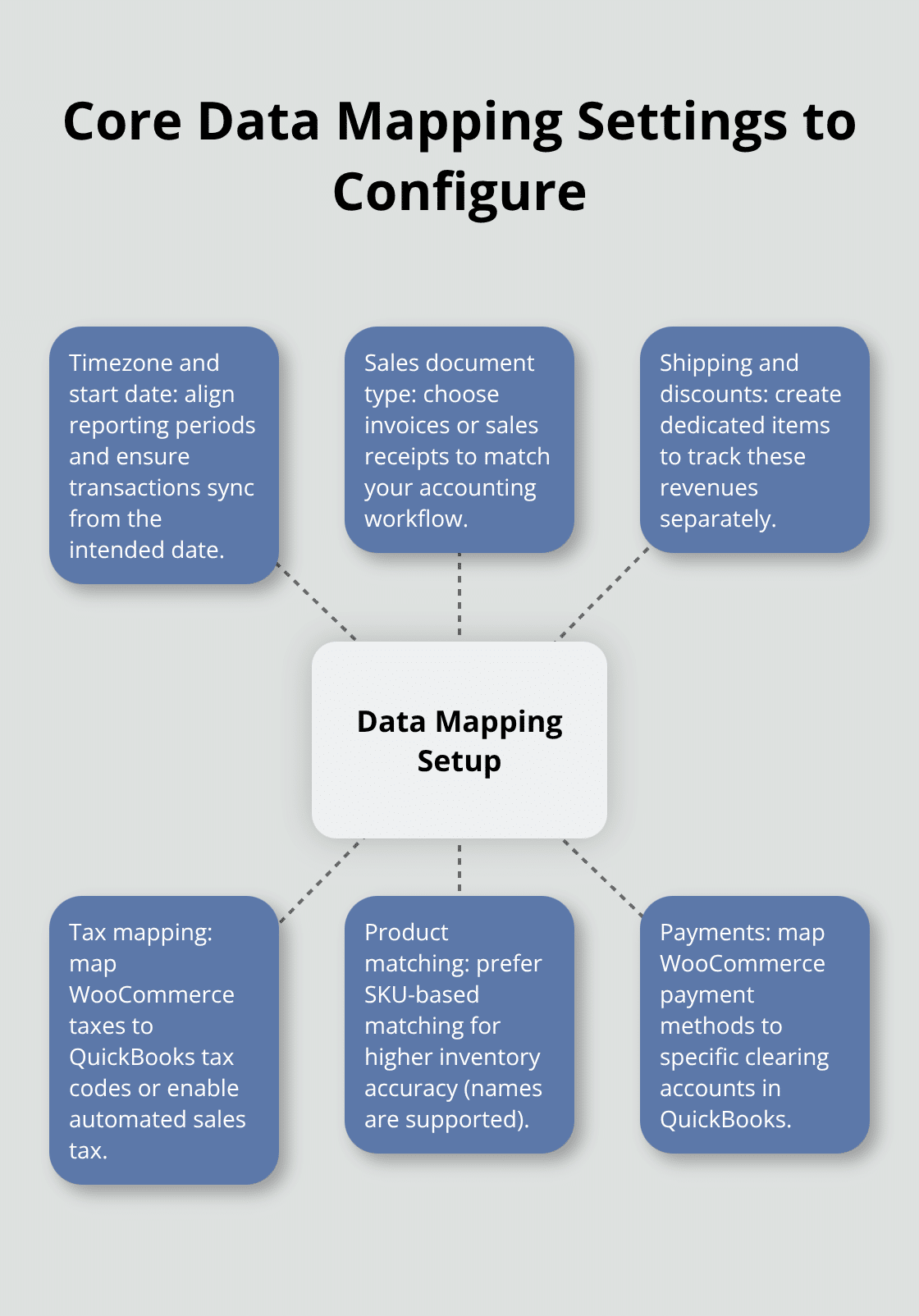
Map each WooCommerce tax to corresponding tax codes in QuickBooks Online unless automated sales tax is active. Product matching works through either product names or SKU codes, though SKUs provide more accuracy for inventory tracking. Payment configurations require mapping WooCommerce payment methods to specific clearing accounts in QuickBooks. Consult an accountant to determine the correct accounts for your business structure.
Testing and Error Resolution Methods
Test the integration with a small batch of recent orders before you enable automatic synchronization. Check that customer information transfers correctly and payment details match between platforms. Common issues include SKU mismatches, tax mapping errors, and payment gateway conflicts that create sync failures.
Review detailed sync logs to identify specific errors quickly, as these logs show exactly which data points caused problems. Inventory syncing requires QuickBooks inventory setup before activation, and partial refunds need proper configuration to appear correctly in both systems. Enable hourly automatic synchronization only after successful manual testing, and monitor sync performance during the first week to catch any recurring issues early.
Final Thoughts
WooCommerce QuickBooks Online integration transforms your e-commerce accounting from manual work into automated efficiency. The 80% reduction in accounting errors and 10-hour monthly time savings make this connection essential for stores that want to scale. Real-time synchronization prevents data discrepancies while automated tax calculations maintain compliance across multiple jurisdictions.
Success depends on proper initial configuration and maintenance practices. Regular sync log reviews catch errors early, while consistent SKU management prevents product mapping failures. Monthly reconciliation between platforms confirms data accuracy and identifies any synchronization gaps that need attention.
Your next step involves selecting the right integration method for your business scale and technical requirements. Small stores benefit from native connectors, while complex operations need third-party solutions or custom development (consider your transaction volume and customization needs when making this decision). We at Pluginizer provide premium plugin access to help you build and maintain professional e-commerce sites efficiently.