
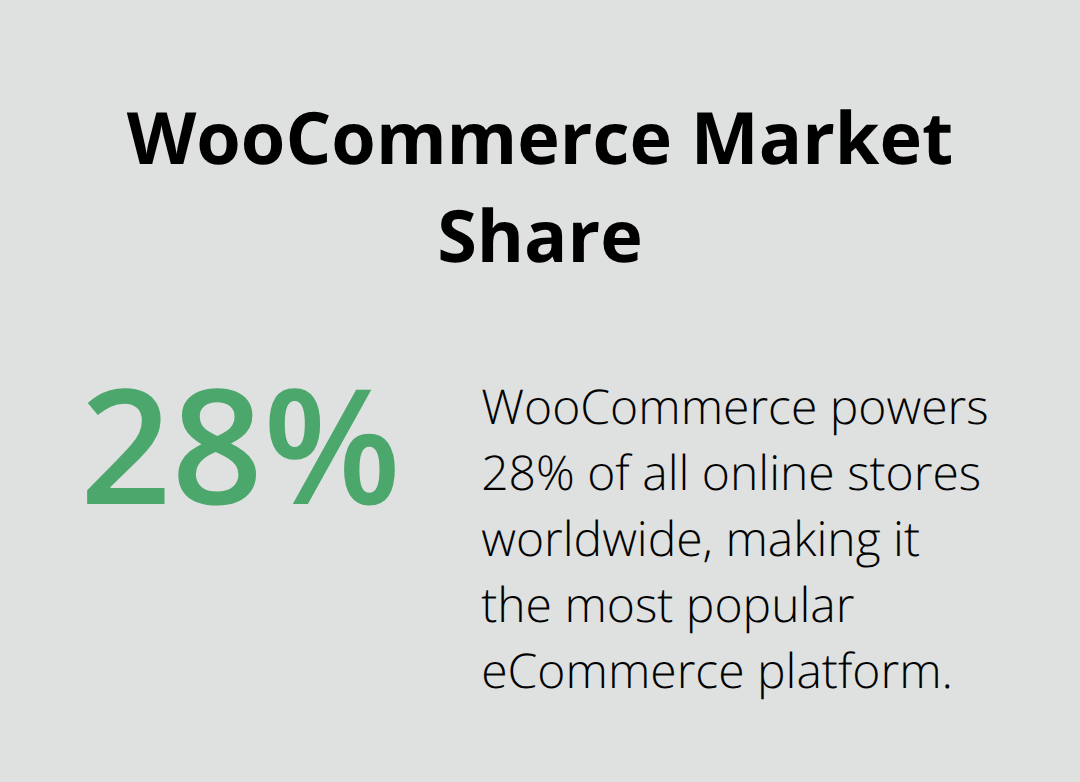
WooCommerce powers over 28% of all online stores worldwide, making it the most popular eCommerce platform. Yet many store owners struggle with limitations when existing plugins don’t meet their specific needs.
WooCommerce extension development offers the perfect solution to create custom functionality that fits your exact requirements. At Pluginizer, we’ve helped countless developers build powerful extensions that transform ordinary stores into conversion machines.
Understanding WooCommerce Extension Development
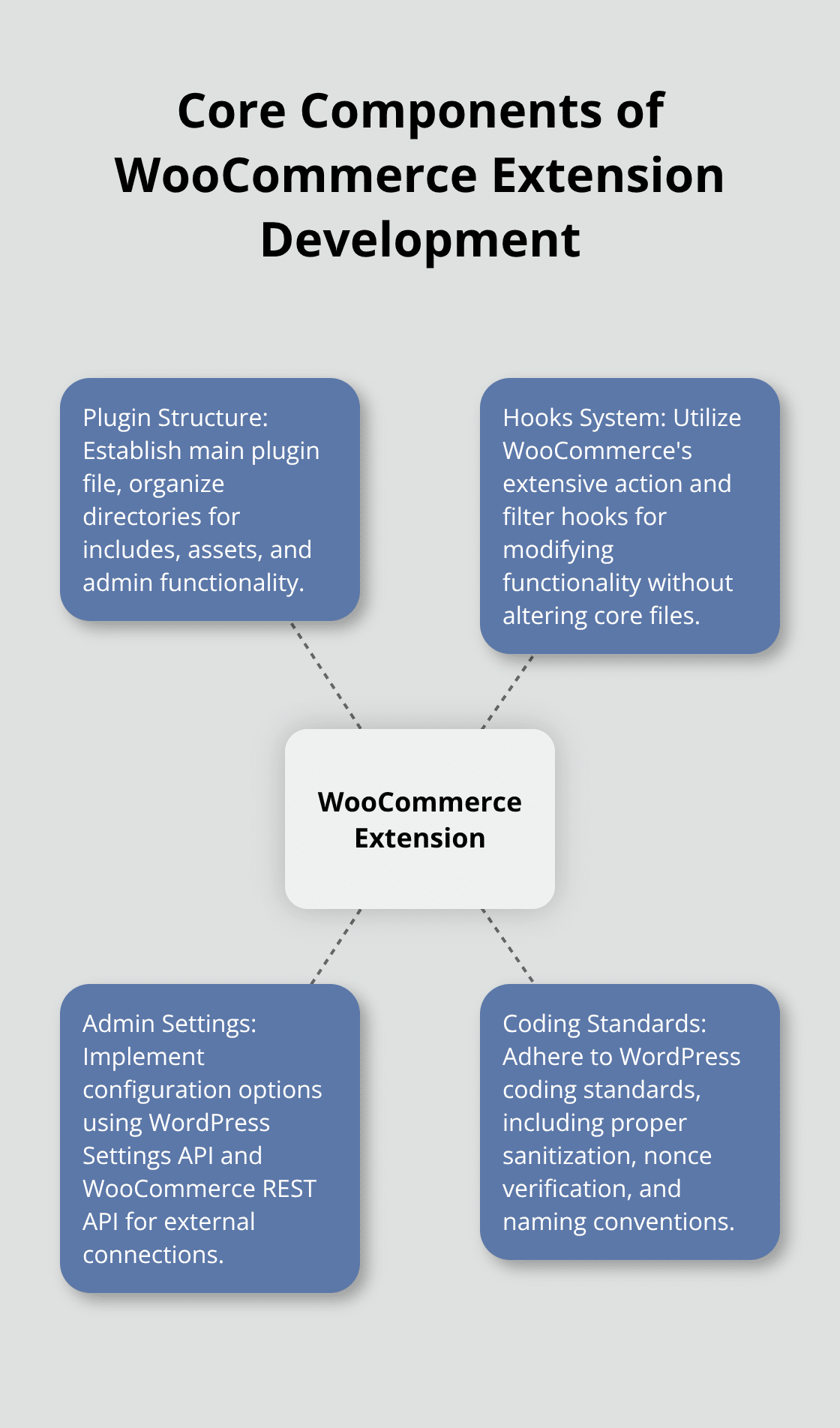
WooCommerce extensions are WordPress plugins built specifically to extend eCommerce functionality, but they operate within a complex ecosystem that demands precise understanding of both WordPress and WooCommerce architectures. The platform uses an extensive hook system with over 300 action and filter hooks that let developers modify everything from checkout processes to product displays without touching core files. WooCommerce follows WordPress coding standards religiously, which means your extensions must adhere to PSR-4 autoloading, proper sanitization functions like sanitize_text_field(), and WordPress naming conventions where underscores separate words in function names.
WooCommerce Architecture and Hook System
WooCommerce operates through a sophisticated hook system that provides developers with precise control points throughout the eCommerce workflow. The platform exposes action and filter hooks across product management, cart operations, checkout processes, and order fulfillment stages. These hooks allow you to modify core functionality without altering WooCommerce files directly, which maintains compatibility during updates.
The architecture separates frontend display logic from backend business logic through template files and PHP classes. Product data flows through WC_Product objects, while orders use WC_Order classes that provide standardized methods for data manipulation. This object-oriented approach means you can extend functionality through inheritance or modify behavior through hooks without breaking existing features.
Essential Development Tools and Environment Setup
Your development setup determines extension quality from day one. Install Node.js version 16 or higher, Docker Desktop, and Composer before you write any code. Use the create-woo-extension scaffolding tool with npx @wordpress/create-block -t @woocommerce/create-woo-extension to generate boilerplate code that includes unit testing, ESLint configuration, and Prettier formatting rules automatically.
WordPress wp-env provides containerized development environments that mirror production servers exactly, which eliminates the common works-on-my-machine problems that plague plugin submissions. The Quality Insights Toolkit (QIT) offers managed test suites that include end-to-end tests, activation tests, and security scans specifically designed for WooCommerce extensions.
WordPress Coding Standards and Best Practices
WordPress coding standards aren’t suggestions but requirements for marketplace acceptance. Prefix all functions with your plugin name to avoid conflicts, use WordPress database functions like $wpdb->prepare() for all queries, and implement proper nonce verification for security. The WordPress Plugin Review Team rejects submissions for coding standard violations, most commonly improper data sanitization and missing capability checks.
Your main plugin file must match your directory name exactly, and text domains must align with folder names for proper localization support across WooCommerce’s 100+ supported languages. Separate business logic from presentation logic to maintain clean code architecture, and use WordPress transients to store external API data efficiently rather than creating custom database tables.
With these foundational elements in place, you can begin constructing your first WooCommerce extension with confidence in its architecture and compatibility.
Building Your First WooCommerce Extension
Create your WooCommerce extension by establishing a main plugin file that matches your directory name exactly. The file must begin with a standard WordPress plugin header that contains Plugin Name, Version, Description, and Author fields, followed by a security check to prevent direct access using defined(‘ABSPATH’) or die(). Your directory structure requires specific folders: includes for PHP classes, assets for CSS and JavaScript files, languages for translation files, and admin for backend functionality. WooCommerce demands your text domain matches the plugin folder name for proper localization across its 100+ supported languages.
Creating the Plugin Structure and Files
WordPress follows strict file organization patterns that determine extension compatibility. Place your main plugin file in the root directory with a name that mirrors the folder structure exactly. The includes folder houses reusable PHP classes that handle business logic, while the assets directory stores compiled CSS and JavaScript files. Create separate subdirectories within assets for source files (src) and distribution files (dist) to maintain clean separation between development and production code.
Your plugin header must include specific fields that WordPress recognizes during activation. The Plugin URI field should point to your extension’s homepage, while the Text Domain field must match your directory name precisely. WordPress uses this information to load translation files and manage plugin dependencies across different installations.
Implementing Core Functionality with Actions and Filters
WordPress activation hooks execute only during plugin activation, which makes them perfect for database table creation or default option setup. Use register_activation_hook(FILE, ‘your_activation_function’) in your main plugin file to trigger setup processes automatically. The init action hook loads after WordPress core initialization but before any output generation, making it ideal for custom post type or taxonomy registration.
Hook into woocommerce_loaded to verify WooCommerce remains active before executing extension-specific code. This prevents fatal errors when users deactivate WooCommerce while your extension stays active. Filter hooks like woocommerce_product_data_tabs allow you to modify existing functionality without touching core files, maintaining compatibility during WooCommerce updates.
Adding Admin Settings and Configuration Options
Admin settings require the admin_menu action to add menu pages and admin_init to register settings fields properly. WordPress Settings API handles form processing automatically when you use register_setting() with appropriate sanitization callbacks. Create tabbed interfaces using jQuery to organize complex settings without overwhelming users with too many options at once.
The WooCommerce REST API connects your shop to external systems. Generate API keys in settings, and use the Consumer Key and Consumer Secret. Settings should save to the wp_options table using WordPress functions rather than custom database tables to maintain compatibility with caching plugins and multisite installations (which handle option storage differently than single-site setups).
These foundational elements prepare your extension for the testing phase, where you’ll validate functionality and optimize performance before deployment.
Testing and Optimization Strategies
Your extension needs rigorous testing before it reaches production servers, and wp-env provides a reliable local development environment through Docker containerization. Run wp-env start from your plugin directory to spin up containerized WordPress and WooCommerce instances with default credentials admin/password that eliminate configuration headaches. The Quality Insights Toolkit from WooCommerce offers automated test suites that check PHP compatibility across versions 7.4 through 8.2, plus security scans that detect common vulnerabilities like SQL injection and cross-site scripting attacks. Enable WP_DEBUG mode in wp-config.php to surface PHP warnings early, and use the WC_Logger class for debugging instead of var_dump or error_log functions that clutter server logs.
Local Testing Environment Setup and Debugging
WordPress wp-env creates isolated development environments that prevent conflicts with your main WordPress installation. The containerized setup includes MySQL databases, PHP configurations, and Apache servers that match most hosting providers exactly. You can test different PHP versions without affecting your local machine setup, which helps identify compatibility issues before deployment.
Debug mode reveals hidden errors that production servers suppress automatically. Set WP_DEBUG_LOG to true in wp-config.php to write errors to debug.log files instead of displaying them on screen. This approach protects sensitive information while providing detailed error tracking for development purposes.
Performance Optimization Techniques
WooCommerce stores generate massive database queries that slow page loads without proper optimization. WordPress transients cache external API responses for specified time periods, reducing server requests by up to 80% according to WordPress performance studies. Use wp_cache_set and wp_cache_get functions for object caching instead of storing temporary data in the database (which creates unnecessary overhead during high traffic periods).
Minimize external library usage since each additional JavaScript file adds 50-100 milliseconds to page load times. The WooCommerce REST API supports batch requests that process multiple operations in single calls, reducing server round trips significantly compared to individual API requests. Compress images and minify CSS files to reduce bandwidth consumption across mobile connections, especially when optimizing for mobile devices.

Security Considerations and Data Validation
WordPress nonce verification prevents cross-site request forgery attacks that compromise customer data and payment information. Use wp_verify_nonce before processing any form submissions, and implement current_user_can capability checks for administrative functions. The sanitize_text_field function handles basic text input, while wp_kses_post allows safe HTML content in product descriptions and custom fields.
SQL queries require $wpdb->prepare statements that prevent injection attacks, and never trust user input without validation through WordPress sanitization functions. Store sensitive configuration data through WordPress options with proper escaping through esc_attr and esc_html functions when displaying user-generated content. Validate all incoming data against expected formats before processing (email addresses must match email patterns, phone numbers should contain only digits and standard formatting characters).
Final Thoughts
WooCommerce extension development demands strict adherence to WordPress standards, deep understanding of hook systems, and robust testing practices. The 3.6 million active WooCommerce stores create enormous opportunities for developers who solve genuine merchant challenges. Success requires proper sanitization functions, compatibility maintenance through updates, and professional testing with Quality Insights Toolkit and wp-env.
The WooCommerce Marketplace connects developers with global merchants while developers retain 70% of sales revenue. Security, performance optimization, and comprehensive documentation build customer trust and drive sales. Professional extensions require clean code architecture that separates business logic from presentation layers.
At Pluginizer, we support developers who face extension development challenges. Pluginizer provides unlimited access to over 15,000 premium plugins and themes through a single subscription, which helps developers study successful implementations and accelerate their progress. Start your first extension today with the scaffolding tools and testing frameworks this guide covers (the WooCommerce ecosystem rewards developers who create secure, well-documented solutions).