
At Pluginizer, we understand the power of combining WooCommerce with WordPress Multisite for managing multiple online stores efficiently.
This guide will walk you through the process of setting up WooCommerce for WordPress Multisite, from enabling the network to configuring shared settings.
Whether you’re running a franchise, managing multiple brands, or overseeing a network of e-commerce sites, mastering WooCommerce Multisite can streamline your operations and boost your online presence.
What is WordPress Multisite and Why Use It with WooCommerce?
Understanding WordPress Multisite
WordPress Multisite is a feature that enables you to run multiple websites from a single WordPress installation. This powerful tool allows you to manage several online stores, blogs, or a combination of both, all from one central dashboard. It’s akin to operating a network of interconnected sites, each with its unique content and design, while sharing the same core files and database.
The Synergy of WooCommerce and Multisite
When you combine WooCommerce with WordPress Multisite, you unlock a world of e-commerce possibilities. This setup proves particularly beneficial for businesses managing multiple brands or stores. For instance, a fashion retailer could operate separate sites for men’s, women’s, and children’s clothing (all managed from one central location).
One of the primary advantages is resource sharing. You can utilize the same themes and plugins across all your sites, which not only saves time but also reduces server load. This can result in substantial cost savings, especially for larger networks.
Real-World Applications
Many businesses have successfully leveraged WooCommerce on Multisite. Here are some practical examples:
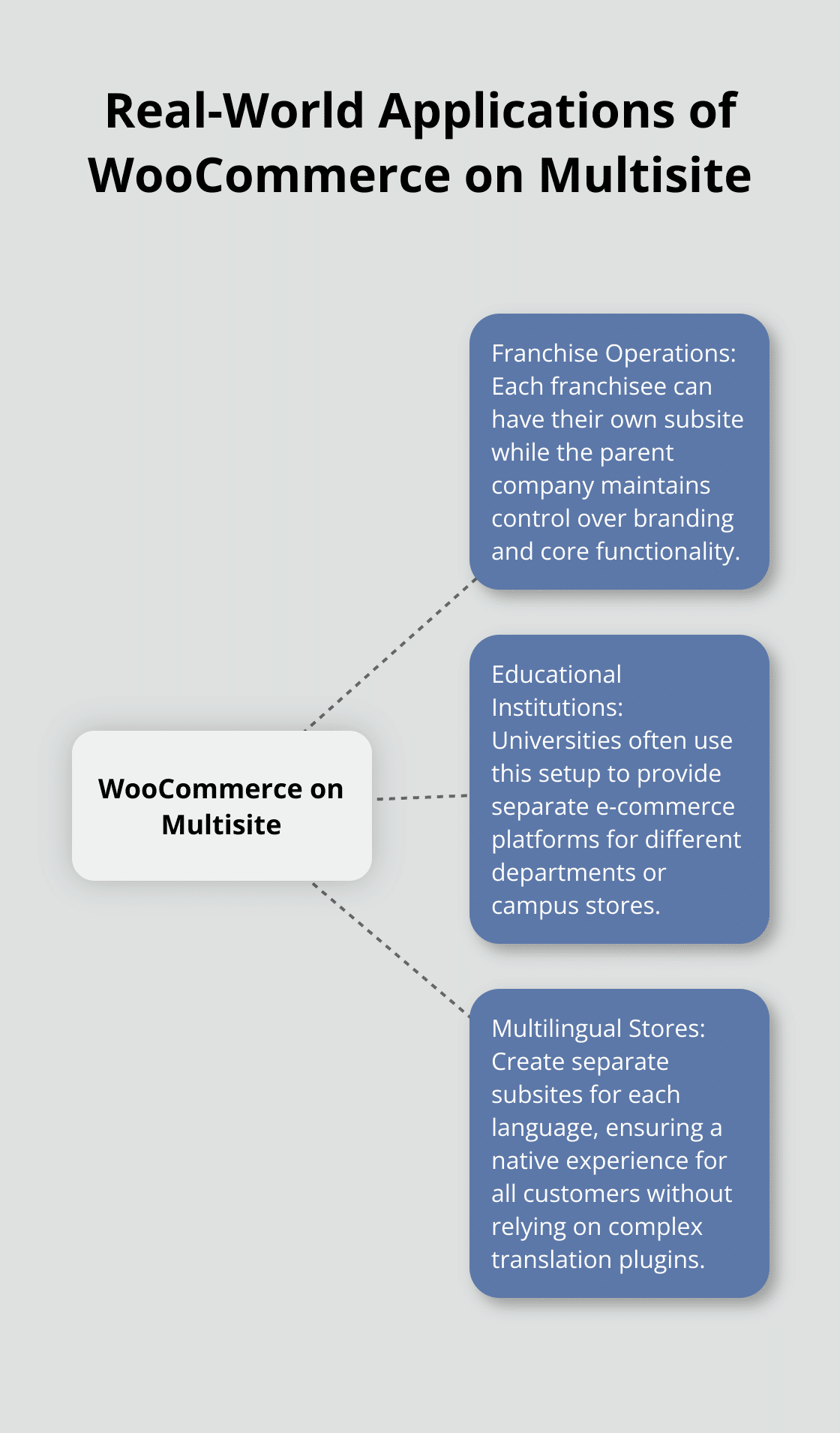
- Franchise Operations: Each franchisee can have their own subsite while the parent company maintains control over branding and core functionality.
- Educational Institutions: Universities often use this setup to provide separate e-commerce platforms for different departments or campus stores.
- Multilingual Stores: Instead of relying on complex translation plugins, you can create separate subsites for each language, ensuring a native experience for all customers.
Operational Efficiency
One of the most significant benefits of this setup is simplified management. You can update WooCommerce and other shared plugins across all sites with just a few clicks. This not only saves time but also ensures consistency in functionality and security across your network.
However, it’s important to note that while Multisite offers numerous advantages, it also presents its own set of challenges. Managing user registrations, profiles, and interactions across multiple sites can be complex, and you must consider how shared resources affect individual site performance.
As we move forward, we’ll explore how to set up WordPress Multisite and configure it for optimal use with WooCommerce. This knowledge will empower you to create a powerful, scalable e-commerce network that grows with your business.
How to Enable and Configure WordPress Multisite
Enabling Multisite in WordPress
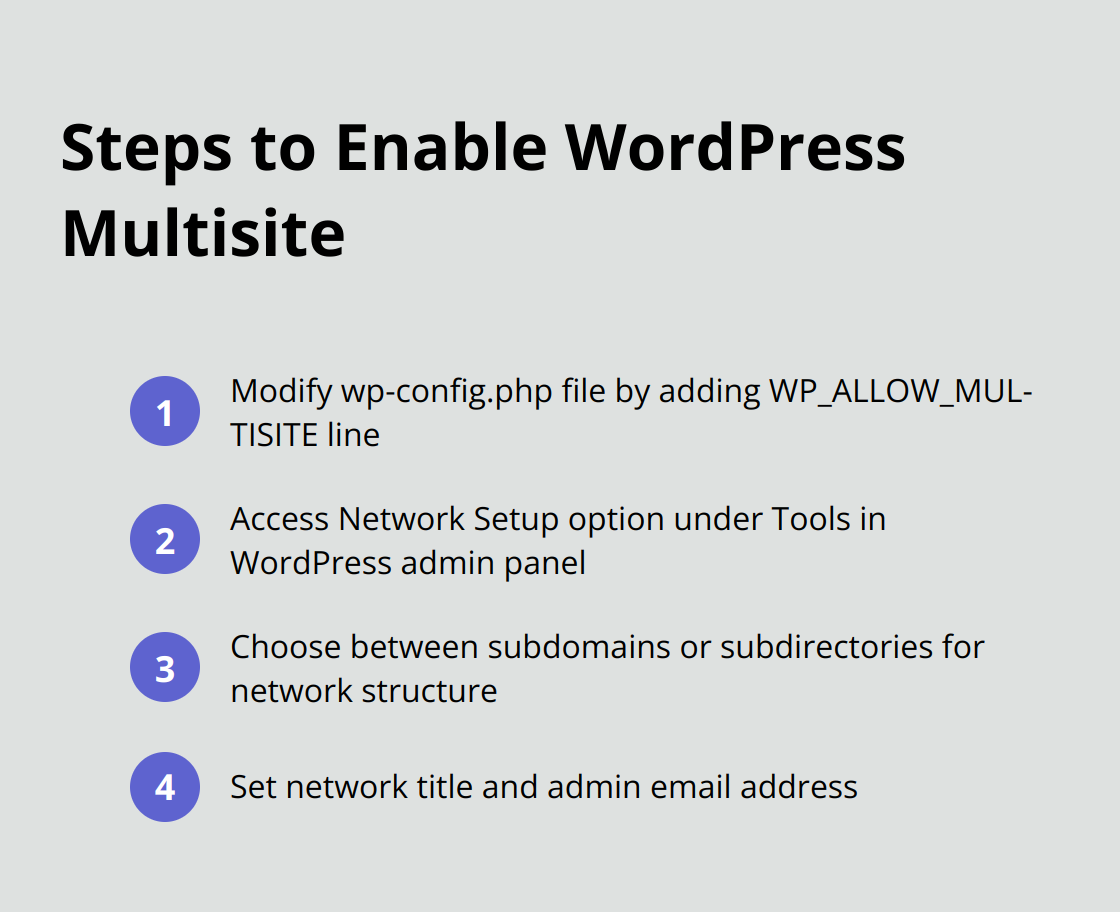
To enable Multisite, you must modify your wp-config.php file. Add this line of code just above the / That’s all, stop editing! / line:
define( ‘WP_ALLOW_MULTISITE’, true );
After saving the file, log back into your WordPress admin panel. You’ll find a new option under Tools called Network Setup. Click on this to start the configuration process.
Configuring Network Settings
During the Network Setup, you’ll choose between subdomains (e.g., store1.yourdomain.com) or subdirectories (e.g., yourdomain.com/store1) for your network structure. This choice depends on your hosting setup and SEO strategy. Subdomains often work better for distinct brands, while subdirectories are typically easier to set up and manage.
You’ll also need to set a network title and admin email address. Choose these carefully, as they’ll be used across your entire network.
Creating and Managing Subsites
Once your network is set up, you can start creating subsites. From the Network Admin dashboard, navigate to Sites > Add New. Here, you can specify the site address, title, and admin email for each new subsite.
Managing these subsites is crucial for maintaining a cohesive network. Use the Network Admin dashboard to oversee all sites, manage themes and plugins network-wide, and control user access across your multisite installation.
Optimizing Performance
While it’s tempting to install numerous plugins across your network, this can lead to performance issues. Try to carefully select your plugins to ensure optimal site speed and functionality. (Pluginizer offers access to premium plugins without the need for individual purchases, which can streamline your multisite management.)
Backup and Security
Regular backups of your entire multisite installation are essential. A single backup will cover all your subsites, making disaster recovery much simpler if needed. (This approach saves time and ensures comprehensive protection for your network.)
With these steps completed, you’ll have a solid foundation for your WooCommerce Multisite setup. The next section will guide you through installing and configuring WooCommerce across your newly created network.
How to Install WooCommerce on WordPress Multisite
Network Activation of WooCommerce
To begin, you must network-activate WooCommerce. Log into your Network Admin dashboard and navigate to Plugins > Add New. Search for WooCommerce, install it, and click Network Activate. This action makes WooCommerce available to all sites in your network.
Network activation doesn’t automatically set up WooCommerce on individual sites. It only makes the plugin available for use. Each site admin will need to complete the WooCommerce setup wizard for their specific store.
Individual Site Setup
For each subsite where you want to use WooCommerce, you need to run the setup wizard. Log into the individual site’s dashboard and go to Plugins. You’ll see WooCommerce listed – click Activate.
This action triggers the WooCommerce setup wizard. Follow the prompts to configure your store’s location, currency, shipping, and payment options. These settings can be customized for each store, allowing for different markets or business models within your network.
Configuring Shared Settings
While individual stores have unique settings, you might want to standardize certain aspects across your network. This is where network-wide settings come into play.
Navigate to your Network Admin dashboard and look for WooCommerce > Settings. Here, you can configure network-wide options like default currency, tax settings, or shipping zones. These settings will apply to all new stores created in your network (saving time and ensuring consistency).
For existing stores, you’ll need to update settings manually or use a plugin like WP-CLI to bulk update configurations. This approach maintains the flexibility of individual store management while providing a baseline for network-wide consistency.
Optimizing Performance
Try to carefully select your plugins to ensure optimal site speed and functionality. (Pluginizer offers access to premium plugins without the need for individual purchases, which can streamline your multisite management.)
Backup and Security
Regular backups of your entire multisite installation are essential. A single backup will cover all your subsites, making disaster recovery much simpler if needed. (This approach saves time and ensures comprehensive protection for your network.)
Final Thoughts
WooCommerce Multisite empowers businesses to manage multiple online stores efficiently. This setup allows for customization of individual sites while maintaining consistency across the network. Proper configuration and management of shared settings enhance the scalability and performance of your e-commerce ecosystem.
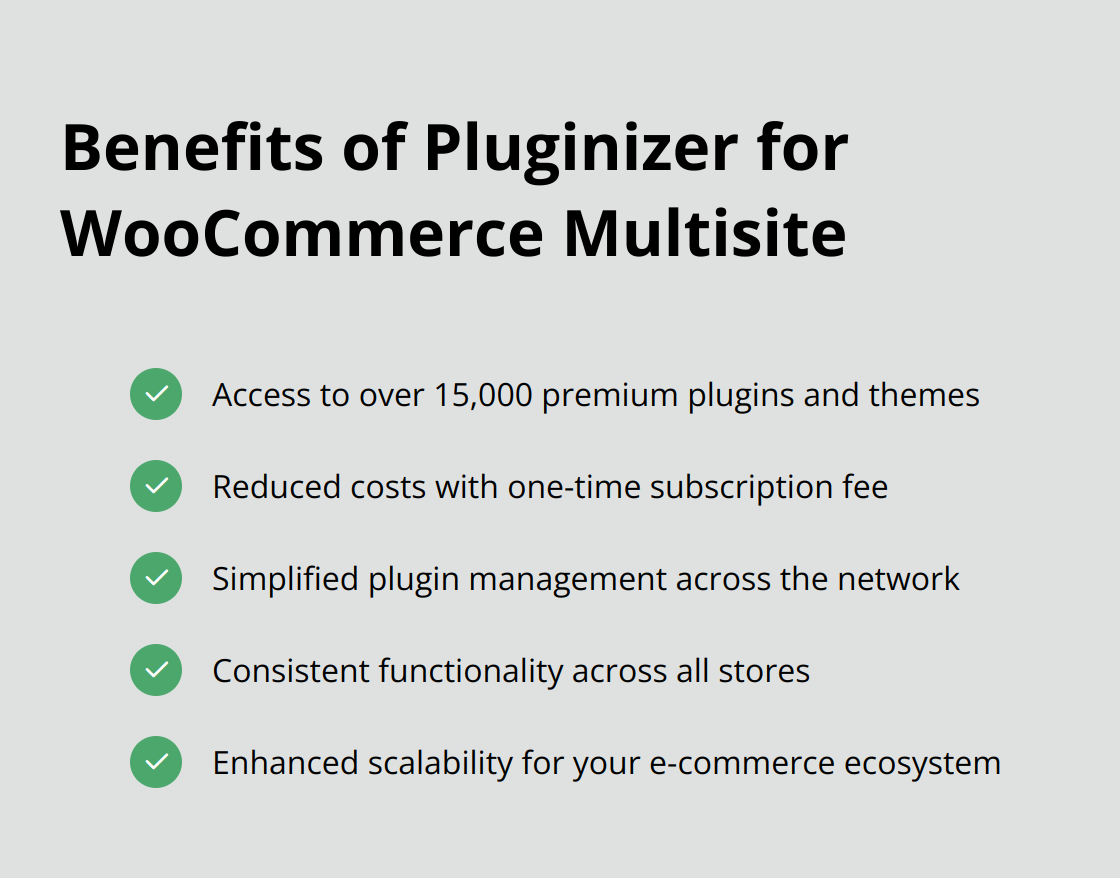
Pluginizer simplifies plugin management for WooCommerce Multisite setups. With access to over 15,000 premium plugins and themes for a one-time subscription fee, it streamlines asset management and reduces costs. Pluginizer’s solution proves particularly valuable for maintaining consistent functionality across all stores in a multisite network.
To optimize your WooCommerce Multisite setup, focus on performance and security. Select plugins carefully to maintain site speed and implement regular backups (protecting your entire network). Consider using shared settings for consistency while allowing individual store customization where necessary. Leveraging these strategies will help create a robust, scalable e-commerce ecosystem for your business.