

Managing WordPress plugins can be a daunting task, especially as your site grows. At Pluginizer, we understand the challenges of keeping your WordPress content plugins directory organized and efficient.
This guide will walk you through the best practices for managing your plugins, from regular audits to leveraging advanced tools. We’ll also explore techniques to streamline your workflow and maintain optimal site performance.
What’s Inside the WordPress Plugins Directory?
A Vast Repository of Tools
The WordPress Plugins Directory serves as an extensive collection of tools that enhance website functionality. It’s the primary resource for WordPress users who want to add new features to their sites without complex coding.
As of July 2025, the directory hosts over 59,000 free plugins. These range from simple widgets to complex e-commerce solutions. Each plugin undergoes a review process to meet WordPress’s coding standards and security requirements.
Efficient Navigation Through Categories
The sheer volume of options can make finding the right plugin challenging. To address this, the directory employs a tagging system to categorize plugins, simplifying the search process. Common categories include:
- SEO
- Security
- Social Media
- Performance Optimization
WordPress ranks plugins based on factors like active installations, user ratings, and update frequency. This ranking system helps users quickly identify popular and well-maintained plugins.
The Impact of Proper Plugin Management
Effective plugin management is essential for maintaining a healthy WordPress site. Proper management involves:
- Regular updates
- Removal of unused plugins
- Ensuring compatibility between plugins and WordPress versions
Neglecting these tasks can lead to security vulnerabilities, slower site speeds, and potential conflicts that could break your site’s functionality.
Tools for Streamlined Management
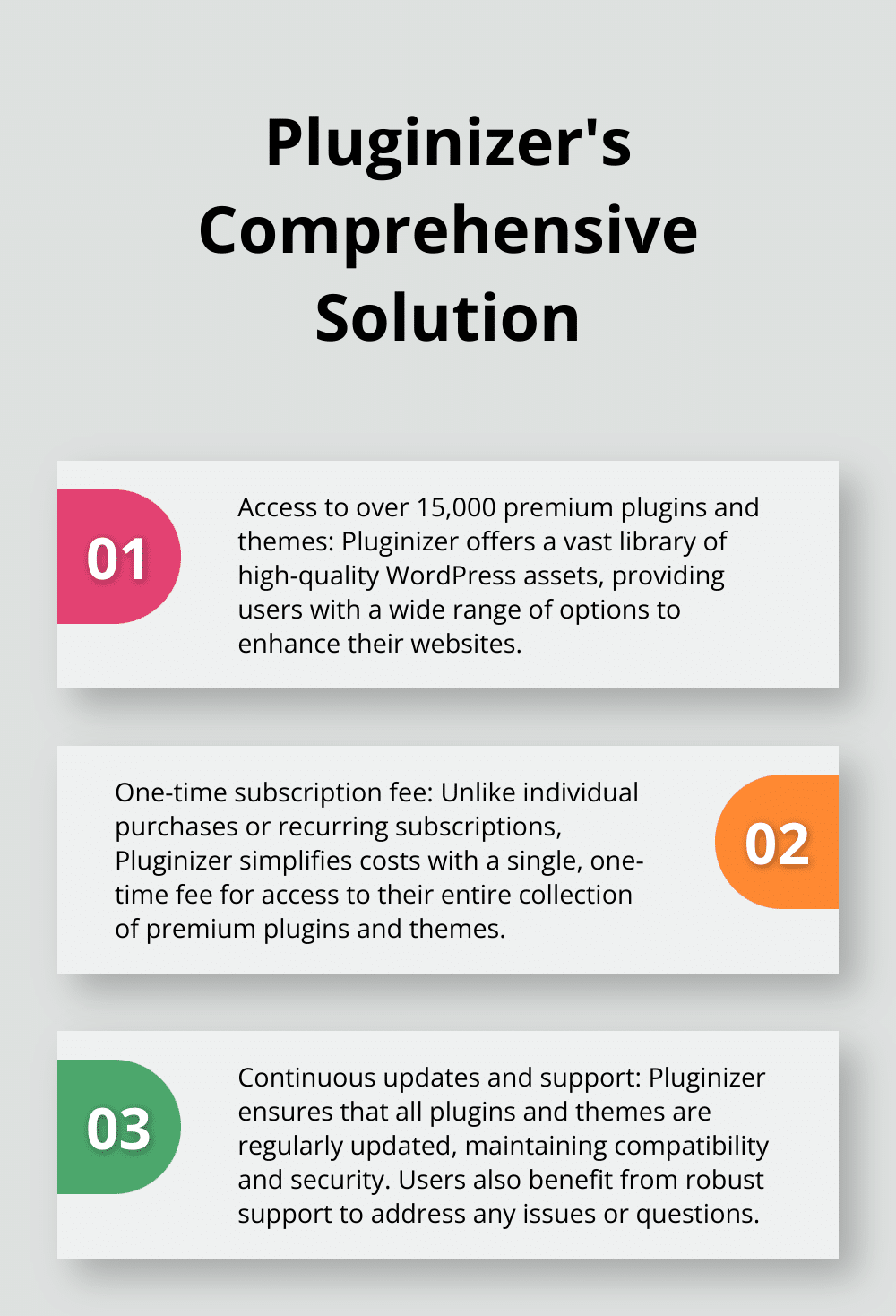
Several tools exist to help WordPress users manage their plugins more effectively. Pluginizer stands out as a top choice, offering users access to over 15,000 premium plugins and themes for a one-time subscription fee. This solution simplifies asset management and provides continuous updates, GPL licensing for unlimited site usage, and robust support.
Other popular management tools include:
- WP-CLI (for command-line management)
- ManageWP (for multiple site management)
- InfiniteWP (for centralized plugin updates)
The WordPress Plugins Directory is a powerful resource that requires careful navigation and management. In the next section, we’ll explore best practices for managing your WordPress plugins effectively, ensuring optimal site performance and security.
How to Keep Your WordPress Plugins in Top Shape
Conduct Regular Plugin Audits
Set a schedule for plugin audits (we recommend monthly for most websites). During these audits, review each active plugin and ask:
- Does this plugin remain necessary for my site’s functionality?
- When did the developer last update this plugin?
- Are there newer alternatives that might work better?
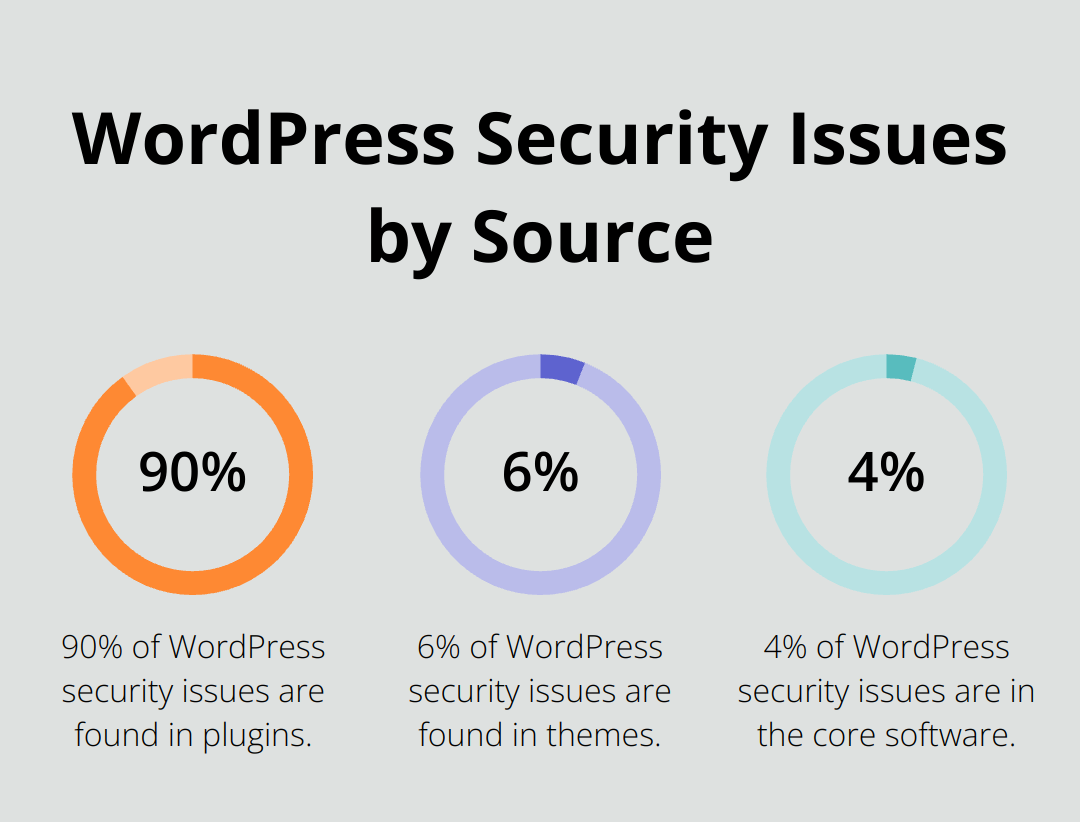
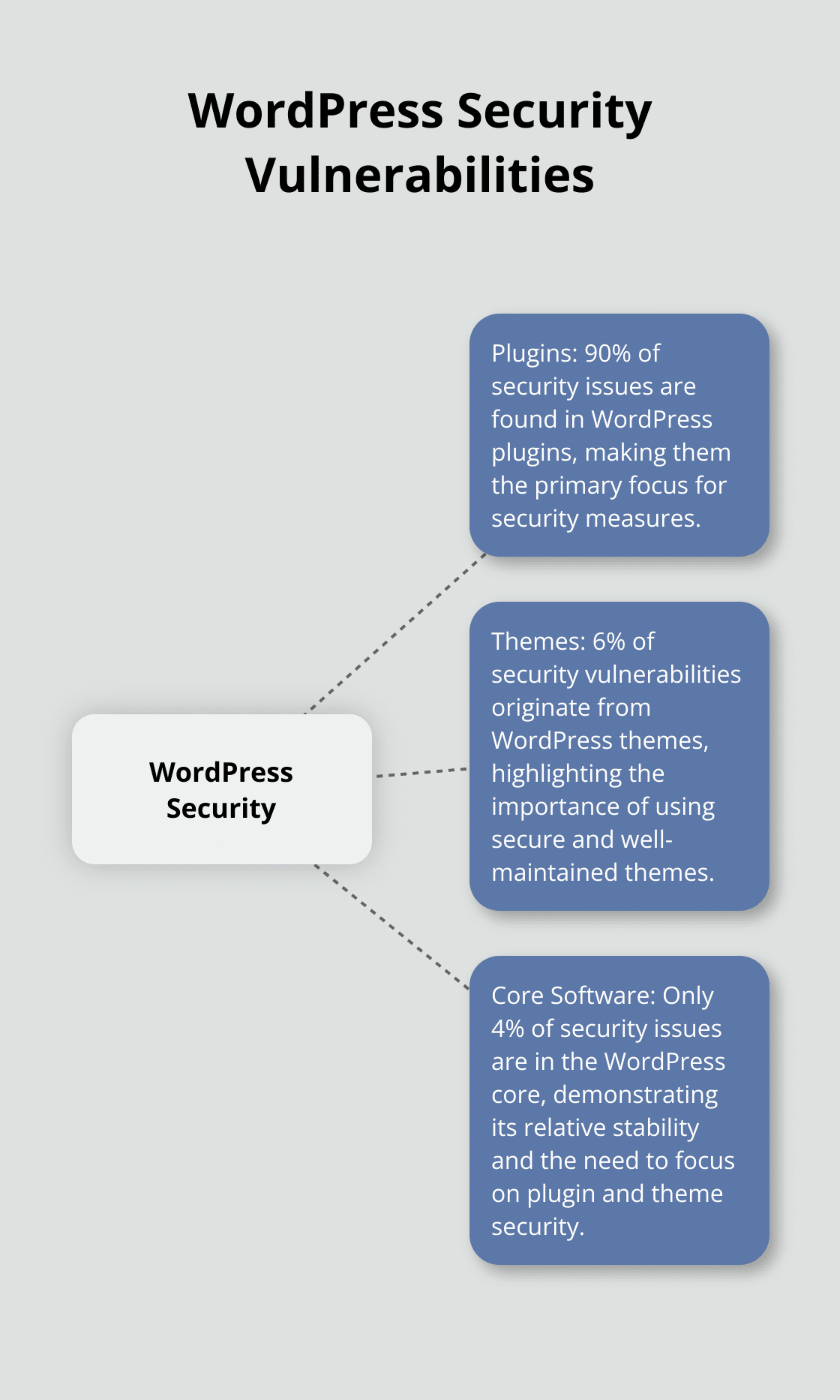
Regular plugin audits are crucial, as 90% of WordPress security issues are in plugins, while 6% are in themes and 4% in the core software.
Update Strategically
While it’s tempting to hit “update all” when new versions become available, a more strategic approach can prevent headaches. We recommend:
- Check the changelog for each update. Prioritize security patches.
- Update one plugin at a time, starting with those from reputable developers.
- After each update, browse your site to ensure nothing has broken.
Prune Unused Plugins
Deactivated plugins aren’t just clutter – they can pose security risks. A 2024 survey by Sucuri found that 39% of hacked WordPress sites had vulnerabilities in inactive plugins. To prune effectively:
- Identify plugins you haven’t used in the last 3-6 months.
- Export any data you might need from these plugins.
- Deactivate, then completely delete these plugins from your site.
Leverage Staging Environments
Testing in a staging environment is essential, especially for sites with high traffic or complex functionality. Staging environments allow you to set up a WordPress staging site in minutes and test updates and changes safely before going live.
When testing new plugins or updates in staging:
- Replicate your live environment as closely as possible.
- Test all major functionality, not just the areas you expect the update to affect.
- Check for conflicts with existing plugins and your theme.
Implement a Robust Backup Strategy
Before any significant changes to your plugins, create a comprehensive backup. We recommend using a solution that offers:
- Automated daily backups
- Easy, one-click restoration
- Off-site storage for added security
UpdraftPlus reports that 47% of their users who needed to restore a backup did so because of issues related to plugin updates or installations.
These best practices will help maintain a leaner, more secure, and better-performing WordPress site. Effective plugin management requires ongoing attention and care. In the next section, we’ll explore advanced tools and techniques to further streamline your plugin management process and boost your site’s overall performance.
Advanced Tools for Streamlined Plugin Management
Managing WordPress plugins efficiently requires more than manual updates and occasional audits. Advanced tools and techniques can streamline your workflow, enhance site performance, and reduce the risk of conflicts. Let’s explore powerful strategies to improve your plugin management.
Plugin Management Solutions
Dedicated plugin management tools can revolutionize how you handle your WordPress plugins. These solutions offer centralized control, allowing you to manage multiple sites from a single dashboard. Let’s explore 11 best WordPress multisite plugins that can help you manage your WordPress multisite network more efficiently.
InfiniteWP provides a self-hosted solution for managing unlimited WordPress sites. It offers features like one-click updates, backups, and security scans, all from a central location.
Pluginizer stands out as the top choice for comprehensive plugin management. It offers access to over 15,000 premium plugins and themes for a one-time subscription fee, simplifies asset management, and provides continuous updates and robust support.
WordPress Multisite for Centralized Management
WordPress Multisite lets you manage several websites from one dashboard, saving time and effort. It’s great for centralized control and sharing themes or plugins across multiple sites.
With Multisite, you can:
- Install and activate plugins network-wide
- Update plugins for all sites simultaneously
- Control which plugins site administrators can access
WP-CLI for Automated Updates
WP-CLI (WordPress Command Line Interface) offers unparalleled control and automation capabilities for those comfortable with command-line interfaces. This tool allows you to manage WordPress installations, including plugin updates, without using a web browser.
Key benefits of using WP-CLI for plugin management include:
- Bulk updates with a single command
- Scheduled automated updates
- Easy management of large-scale WordPress installations
Performance and Conflict Monitoring
Effective plugin management extends beyond updates and installations. You must monitor how plugins affect your site’s performance and identify potential conflicts.
Query Monitor provides detailed information about database queries, hooks, conditionals, HTTP requests, and more. This data helps pinpoint plugins that may slow down your site.
For conflict detection, Plugin Organizer allows you to selectively disable plugins on specific pages or posts. This granular control helps isolate issues and maintain optimal site performance.
Final Thoughts
Effective management of your WordPress plugins directory enhances website security, efficiency, and performance. Regular audits, strategic updates, and removal of unused plugins reduce risks and improve site speed. Advanced tools like dedicated management solutions, WordPress Multisite, and WP-CLI streamline workflows and simplify plugin management across multiple sites.
Pluginizer stands out as a comprehensive solution for efficient plugin management. It provides access to over 15,000 premium plugins and themes for a one-time subscription fee. Pluginizer eliminates individual purchases and offers continuous updates, GPL licensing for unlimited site usage, and robust support.
Proactive maintenance of your wp content plugins directory WordPress forms the foundation of a successful website. Tools like Pluginizer unlock the full potential of WordPress sites while minimizing risks and maximizing performance. Take control of your plugins today and watch your site thrive.