

At Pluginizer, we know that choosing the right WordPress plugins can make or break your website’s performance.
In this guide, we’ll explore the top 10 plugins for WordPress that can significantly boost your site’s speed, security, and functionality.
From caching solutions to image optimization tools and robust security measures, we’ll cover the essential plugins every WordPress site owner should consider.
How Caching Plugins Supercharge Your WordPress Site
Caching plugins transform WordPress site performance. They store static versions of web pages, reduce server load, and speed up load times. Some users report load time reductions of up to 70% after implementing caching solutions.

WP Rocket: The User-Friendly Powerhouse
WP Rocket stands out as a top-tier caching solution. It offers immediate performance boosts upon activation. Key features include:
- Page caching
- Browser caching
- GZIP compression
- Minification of HTML, CSS, and JavaScript files
WP Rocket’s simplicity is its strength. You don’t need technical expertise to see results. Install, activate, and watch your site speed improve. Thanks to WP Rocket, you can instantly see a great improvement in your website performance and Google PageSpeed Insights score – including Core Web Vitals.
W3 Total Cache: For Advanced Users
W3 Total Cache provides a more complex but highly customizable option. Developers and tech-savvy users prefer it for granular control over caching settings. This plugin offers:
- Page, object, and database caching
- Minification with fine-tuned controls
- CDN integration
- Browser caching
W3 Total Cache has a steeper learning curve. It suits users comfortable with technical configurations. W3 Total Cache improves the SEO, Core Web Vitals and overall user experience of your site by increasing website performance and reducing load times.
WP Super Cache: Simple Yet Effective
WP Super Cache provides a straightforward, free solution. Automattic (the company behind WordPress.com) develops it, ensuring reliability and regular updates. WP Super Cache offers:
- Static file caching
- Compression of pages
- CDN support
Its simplicity makes it ideal for beginners or small to medium-sized websites looking for a performance boost without complexity.
Optimizing Your Caching Strategy
To maximize the benefits of these plugins, consider these tips:
- Start with default settings and customize gradually
- Clear your cache after major site updates
- Use a staging site to test caching configurations
- Monitor your site’s performance before and after implementing caching
Caching plugins form just one part of a comprehensive performance strategy. Combining them with other optimization techniques can lead to even more significant speed improvements. For instance, advanced speed optimization tools can significantly improve your website’s performance by caching dynamic content and database queries, reducing server load and enhancing overall speed.
As we move forward, let’s explore another critical aspect of site performance: image optimization. Large, unoptimized images can negate the benefits of even the best caching setup, so it’s essential to address this aspect of your WordPress site.
How to Optimize Images for Faster Loading
Images significantly impact website design and user experience, but they can also slow down your WordPress site if not properly optimized. Let’s explore effective strategies to tackle this common issue and improve your site’s performance.
The Weight of Images on Website Speed
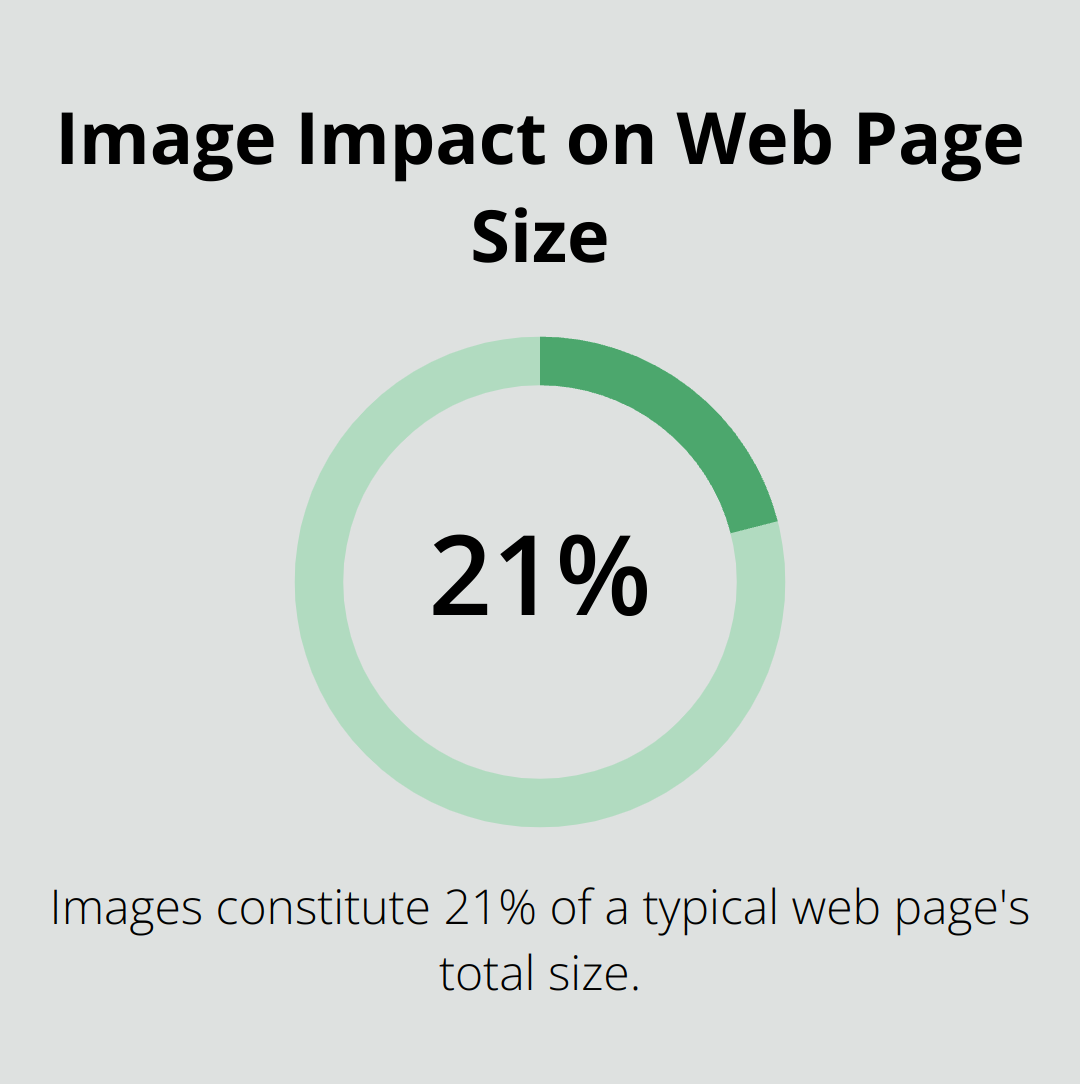
Images constitute a substantial portion of an average web page’s total weight. HTTP Archive reports that images make up 21% of a typical web page’s size. This statistic underscores the importance of image optimization in enhancing overall site performance.
Top Image Optimization Plugins
Several WordPress plugins can streamline your image optimization process. Here are some top performers:
Smush: User-Friendly Compression
Smush is the leading image optimization plugin that optimizes, resizes, and compresses images, as well as converts images to WebP or AVIF format for faster loading web pages.
ShortPixel: Versatile Compression Options
ShortPixel automatically optimizes images with both lossless and lossy compression options, reducing file size while keeping high visual quality.
Imagify: Multi-Level Compression
Created by the WP Rocket team, Imagify provides three levels of compression. It also offers WebP conversion, which can further reduce file sizes by up to 25%.
(While these plugins are popular choices, Pluginizer offers access to over 15,000 premium plugins, including advanced image optimization tools, all under one subscription.)
Best Practices for Image Optimization
Implement these best practices to maximize your image optimization efforts:
- Select the right file format: Use JPEGs for photographs, PNGs for images with transparency, and SVGs for logos and icons.
- Resize images before uploading: Don’t rely solely on WordPress to resize your images. Use photo editing software to resize images to the largest size they’ll appear on your site.
- Enable lazy loading: This technique defers the loading of off-screen images, speeding up initial page load times. Many image optimization plugins include this feature.
- Utilize WebP format: This modern image format provides superior compression and quality characteristics compared to JPEG and PNG.
- Conduct regular image audits: Periodically review your media library and remove unused images to keep your site lean.
Image optimization forms a critical part of your overall WordPress performance strategy. However, even the most optimized images can’t protect your site from security threats. In the next section, we’ll explore essential security plugins to safeguard your WordPress website from potential vulnerabilities and attacks.
How to Secure Your WordPress Site
The WordPress Security Landscape
WordPress powers over 40% of all websites, which makes it a prime target for cybercriminals. In 2022, Sucuri reported that 44% of all hacked websites ran on WordPress. This statistic highlights the need for strong security measures.
Common Security Threats
WordPress sites face numerous security challenges:
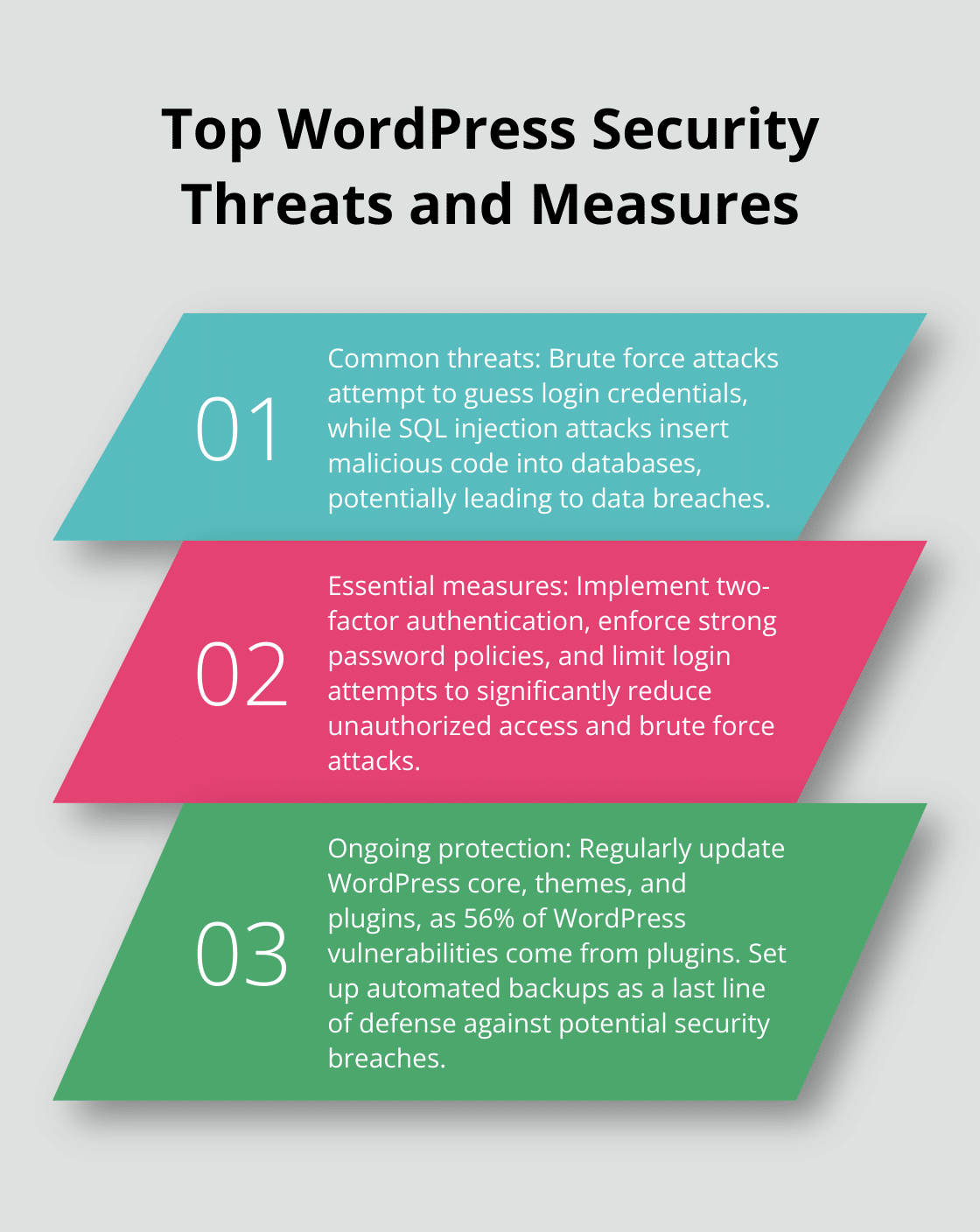
- Brute force attacks: Hackers attempt to guess login credentials.
- SQL injection attacks: Malicious code inserts into databases. These attacks can lead to data breaches.
Top Security Plugins for WordPress
To combat these threats, you should implement a comprehensive security plugin:
Wordfence: Robust Protection
Wordfence blocked and logged over 54 billion malicious requests, and blocked over 55 billion password attacks in 2024. This plugin scans for malware, monitors live traffic, and provides real-time threat intelligence.
Sucuri: Comprehensive Security Suite
Sucuri offers malware scanning, blacklist monitoring, and DDoS protection. Their Website Firewall (WAF) mitigates an average of 60 million attacks daily across their network.
Solid Security (formerly iThemes Security): Versatile Protection
Solid Security is a 3-in-1 security plugin that can help you secure your site, create site backups, and help with site management. It offers features like two-factor authentication.
Essential Security Configurations
Regardless of the plugin you choose, implement these security measures:
- Enable two-factor authentication to reduce unauthorized access attempts dramatically.
- Implement strong password policies. Enforce complex passwords and regular password changes for all users.
- Limit login attempts. This prevents brute force attacks by blocking IP addresses after a certain number of failed login attempts.
- Keep your WordPress core, themes, and plugins updated. The WPScan Vulnerability Database reports that 56% of WordPress vulnerabilities come from plugins.
- Set up regular backups as your last line of defense. Ensure your security plugin includes automated backup features.
Security is an ongoing process. You should audit your site’s security measures regularly and stay informed about the latest WordPress vulnerabilities and patches.
Final Thoughts
We explored the top 10 plugins for WordPress that enhance site performance, security, and functionality. These plugins form the backbone of a well-optimized WordPress site, from powerful caching solutions to image optimization tools. Security plugins like Wordfence and Sucuri fortify your site against common threats, which is essential in today’s digital landscape.
Regular updates and maintenance keep your site running smoothly and securely. You should update your WordPress core, themes, and plugins to patch vulnerabilities and access new features. It’s important to strike a balance between functionality and performance, as too many plugins can slow down your site.
Pluginizer offers an innovative solution for those looking to streamline their plugin management. With access to over 15,000 premium plugins and themes under a single subscription, Pluginizer simplifies asset management while providing continuous updates and support. You can unlock the full potential of your WordPress site and stay ahead in the competitive online landscape.