
At Pluginizer, we know that managing users is a key part of running a WordPress site. Adding users in WordPress is a simple process, but it’s important to do it right.
This guide will walk you through the steps of adding new users, explain different user roles, and share best practices for user management.
What Are WordPress User Roles?
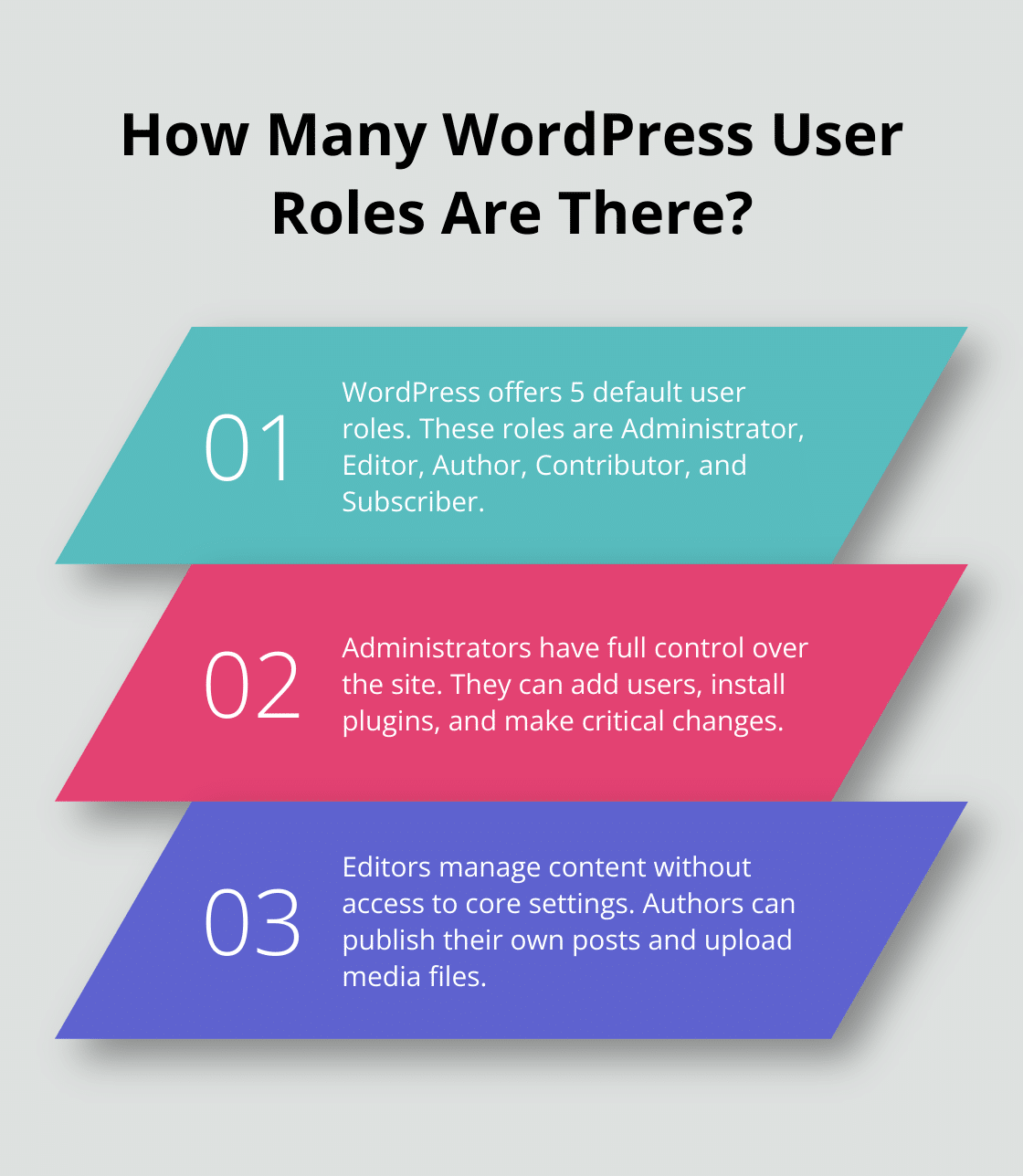
WordPress user roles form the backbone of effective website management. Let’s explore the default WordPress user roles and their capabilities.
Administrator: The All-Powerful Role
Administrators wield full control over the entire WordPress site. They add or remove users, install plugins and themes, and make critical changes to the site’s structure. According to Patchstack, in 2023, 12.9% of WordPress security issues were due to broken access control. This statistic highlights the need to limit this role to only the most trusted team members.
Editor: Content Management Expert
Editors possess full control over content but can’t modify the site’s core settings. They publish, edit, and delete any posts or pages, including those created by other users. This role suits content managers who need to oversee the publishing process without accessing sensitive site settings.
Author: Independent Content Creator
Authors write, edit, and publish their own posts. They also upload media files. However, they can’t modify content created by other users. This role fits regular contributors who need autonomy in their content creation process.
Contributor: Content Creator with Limitations
Contributors write and edit their own posts but cannot publish them. This role serves guest writers or new team members who require oversight before their content goes live.
Subscriber: Basic Access User
Subscribers have the most limited capabilities. They read content and leave comments (if enabled) but cannot create or edit any content. This role typically applies to membership sites or when you want to restrict certain content to registered users only.
Proper role assignment is not just about functionality; it’s a critical security measure. Limiting access to only what each user needs significantly reduces the risk of accidental or malicious changes to your site.
These roles serve as a starting point. Many plugins (including those available through Pluginizer) offer the ability to create custom roles or modify existing ones to fit specific needs. This flexibility allows you to tailor user permissions precisely to your workflow and security requirements.
Now that we’ve covered the different user roles in WordPress, let’s move on to the practical steps of adding new users to your site.
How to Add New Users to WordPress
Adding new users to your WordPress site enhances management and security. This step-by-step guide will walk you through the process.
Access the WordPress Dashboard
Log into your WordPress admin area. Add /wp-admin to your site’s URL to reach the login page. Enter your credentials to access the familiar WordPress dashboard.
Navigate to the Users Section
Look for the Users option in the left-hand menu of your dashboard. It typically displays an icon resembling two people. Click on this to open the Users section.
Add a New User
At the top of the Users page, you’ll find an Add New button. Click this to open the Add New User form where you’ll input the necessary information for your new user.
Fill Out User Information
Complete the new user’s details in the form. The username and email fields are mandatory. Choose a strong, unique username (avoid easily guessable options). Use a valid email address for account verification and password resets.

Next, assign a role to the new user. Select the role that best matches the user’s responsibilities on your site. (Refer to the previous section on user roles if you need a refresher.)
Set Password and Send Notifications
You have two options for setting the user’s password:
- Set a password manually
- Let WordPress generate one automatically
If you choose the latter, ensure you tick the Send User Notification checkbox. This action triggers an email to the new user containing their login information.
Finalize the Process
Click the Add New User button at the bottom of the form to complete the process. You’ve successfully added a new user to your WordPress site!
Credential stuffing was the most common attack against WordPress sites in 2022. This statistic underscores the importance of proper user management and role assignment.
The process of adding users is straightforward, but effective user management requires ongoing attention. In the next section, we’ll explore best practices for user management to help maintain the security and smooth operation of your WordPress site.
How Can You Secure Your WordPress Users?
Managing WordPress users extends beyond adding them to your site. It involves creating a secure environment that protects your website and its users. Proper user management can significantly impact a WordPress site’s security.
Conduct Regular User Audits
User audits serve as your first line of defense against unauthorized access. Review your user list at least quarterly. Look for inactive accounts, outdated roles, or suspicious activity. A 2023 report by Wordfence revealed that 16% of WordPress sites have at least one inactive admin account, which poses a significant security risk.

During your audit, remove or deactivate unnecessary accounts. Update WordPress roles for users who’ve changed positions within your organization. This practice can reduce your site’s attack surface.
Enforce Strong Password Policies
Weak passwords provide easy access for hackers. Implement a strong password policy for all users. Require passwords to be at least 12 characters long, including a mix of uppercase and lowercase letters, numbers, and symbols.
Use a password manager (like LastPass or 1Password) to generate and store complex passwords. These tools help your users maintain strong, unique passwords for each of their accounts.
Implement Two-Factor Authentication
Two-factor authentication (2FA) adds an extra security layer to your login process. It requires users to provide two different authentication factors to verify their identity, making unauthorized access more difficult.
Several WordPress plugins offer 2FA functionality. WordPress 2FA plugins can help you add an additional security layer to your WordPress login form.
Limit Login Attempts
Brute force attacks (where hackers attempt to guess passwords through repeated login attempts) are common in WordPress. Limit login attempts to effectively thwart these attacks.
Configure your WordPress site to lock out users after a certain number of failed login attempts. This can be done through security plugins or by adding code to your .htaccess file. Try to limit attempts to 3-5 before implementing a temporary lockout.
Educate Your Users
Your site’s security is only as strong as its weakest link (often a user who’s unaware of security best practices). Invest time in educating your users about WordPress security.
Create a simple security guide for your users. Cover topics like choosing strong passwords, recognizing phishing attempts, and the importance of logging out on shared computers. Regular reminders and updates about security practices can maintain a secure WordPress environment.
Final Thoughts
Adding users in WordPress requires careful consideration and ongoing management. We at Pluginizer recommend regular reviews and updates of user roles as your team and site evolve. This proactive approach ensures each user has the necessary permissions without compromising security.

User management extends beyond initial setup and forms a cornerstone of WordPress security. Strong password policies, two-factor authentication, and limited login attempts all contribute to a robust security posture. Regular user audits and education about security best practices create a safer environment for your WordPress site and its users.
As your WordPress site grows, consider leveraging tools like Pluginizer to enhance functionality and streamline your workflow. Pluginizer offers access to thousands of premium plugins and themes (allowing you to customize and secure your WordPress site efficiently). Prioritize user management and security to create a foundation for growth and success in the digital landscape.