
At Pluginizer, we’re excited to explore the world of WordPress animation plugins. These powerful tools can transform your static website into a dynamic, engaging experience for your visitors.
Ready to breathe life into your WordPress site? Let’s dive into the top free animation plugins and learn how to use them effectively.
Top Free Animation Plugins for WordPress
Animating your WordPress site doesn’t have to be expensive. We’ve tested numerous free animation plugins, and these four stand out for their user-friendliness, versatility, and performance.
Animation and Interaction Plugin
This plugin adds dynamic elements to your site with a wide range of animations, from simple fades to complex motion paths. Its intuitive interface allows even beginners to create professional-looking animations without coding.

The scroll-triggered animations make your content come alive as visitors scroll down the page, enhancing user engagement and providing an enjoyable user experience on your WordPress site.
Elementor Addon Elements
For Elementor users, this plugin adds new widgets and effects to Elementor’s already impressive arsenal. The particle background effect adds a subtle, modern touch to headers or full-width sections.
The animated headline widget can increase click-through rates on call-to-action buttons (use it sparingly to avoid visual fatigue).
Animation for Elementor
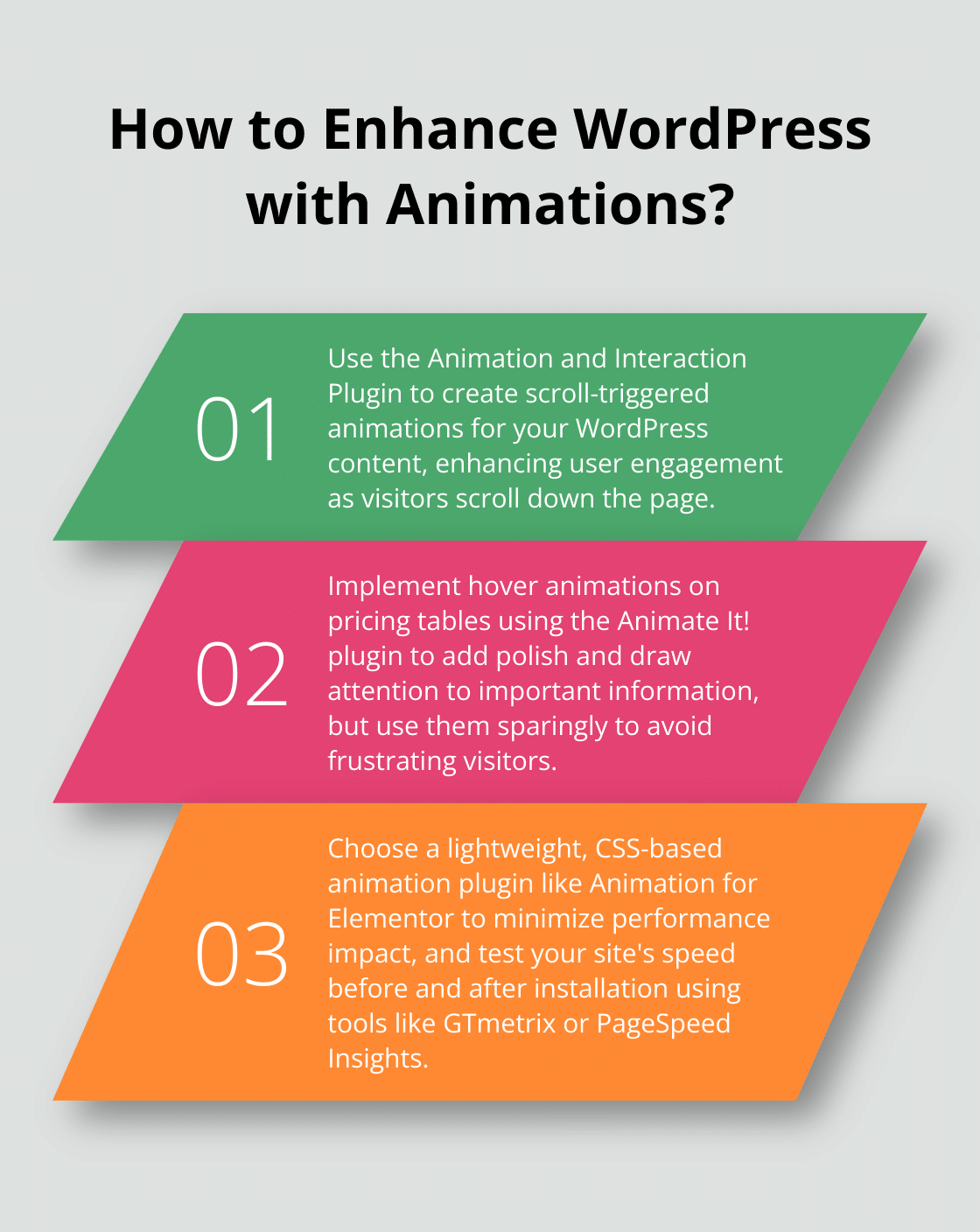
This plugin focuses on adding smooth, CSS-based animations to existing Elementor elements. It’s lightweight, which means it won’t slow down your site – a crucial factor for maintaining good SEO rankings.
With over 40 animation effects (including attention-seekers like bounce and pulse, as well as more subtle entrance animations), this plugin offers versatility. Fade-in animations for product images on e-commerce sites can enhance product page engagement.
Animate It!
Animate It! works with any WordPress theme or page builder, making it incredibly versatile. The plugin uses CSS3 animations, ensuring smooth performance across devices.
One powerful feature is the ability to trigger animations on hover or click. This can highlight important information or create interactive infographics. Hover animations on pricing tables can add polish, but should be used sparingly to avoid frustrating visitors and increasing bounce rates.
While these plugins offer powerful features, the key to effective animations is moderation. Use them to enhance your content, not overshadow it. Now, let’s explore how to choose the right animation plugin for your specific needs.
How to Choose the Right Animation Plugin for Your WordPress Site
Ensure Theme Compatibility
Not all animation plugins work well with every WordPress theme. Test your chosen plugin on a staging site to avoid unexpected issues on your live website. Look for plugins that explicitly state compatibility with your theme or page builder. For instance, if you use Elementor, the Animation for Elementor plugin (mentioned earlier) is a reliable choice.
Consider Performance Impact
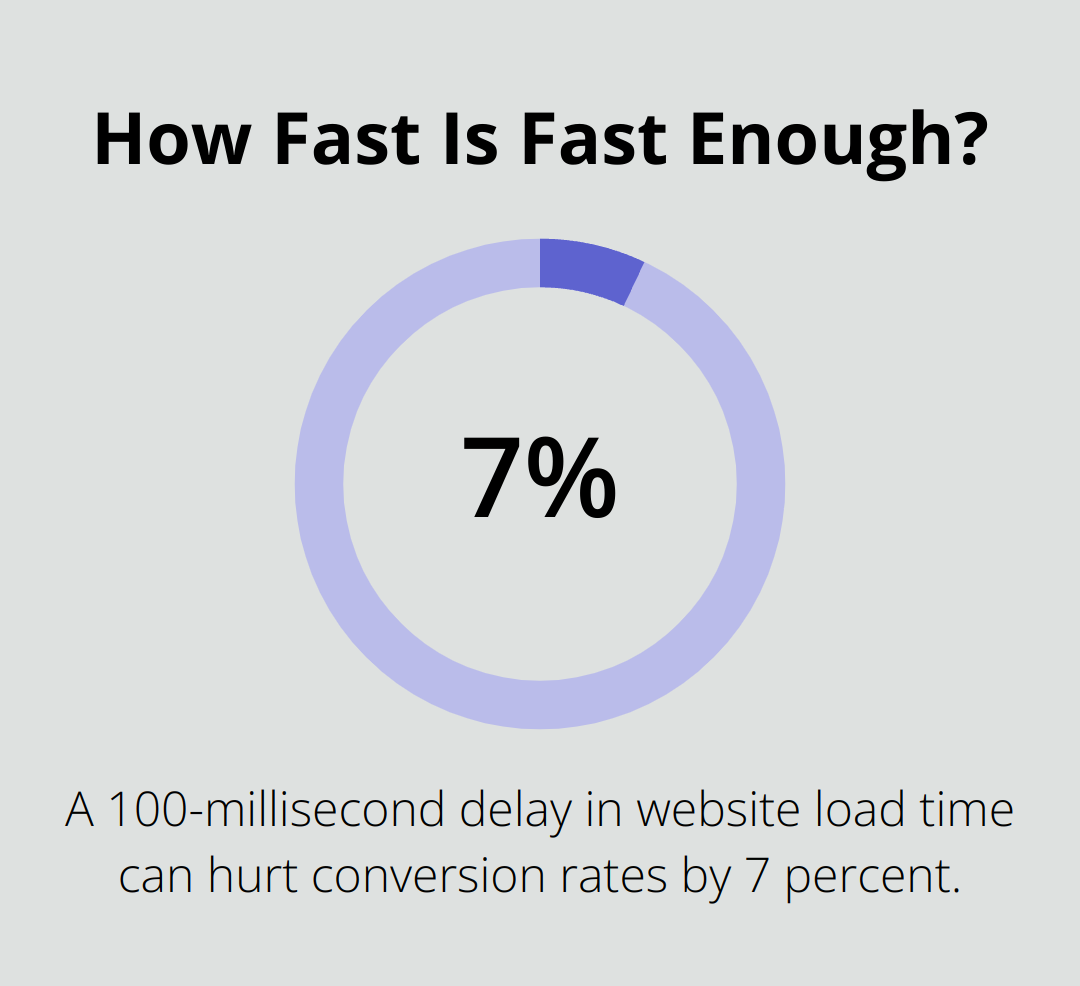
Animation plugins can significantly affect your site’s speed. A 100-millisecond delay in website load time can hurt conversion rates by 7 percent. Select a lightweight plugin to minimize this impact. CSS-based animation plugins typically perform better than JavaScript-heavy alternatives. Use tools such as GTmetrix or PageSpeed Insights to measure your site’s speed before and after plugin installation.
Evaluate User-Friendliness
Unless you possess advanced coding skills, opt for a plugin with an intuitive interface. Search for features like drag-and-drop functionality, visual editors, and pre-built animation libraries. The Animation and Interaction Plugin (discussed earlier) excels in ease of use, offering a no-code approach to create complex animations.
Assess Customization Options
The ability to tailor animations to your brand is essential. Choose a plugin that offers a wide range of customization options (colors, timing, effects). This flexibility allows you to create unique animations that align with your website’s aesthetic and functionality.
Check for Regular Updates and Support
Select a plugin with a track record of regular updates and responsive customer support. This ensures compatibility with the latest WordPress versions and quick resolution of any issues you might encounter.
The perfect animation plugin balances visual appeal, performance, and usability. Try several options before making your final decision. If you want access to a wide range of premium plugins without individual purchases, consider Pluginizer. Our service provides unlimited access to over 15,000 premium plugins and themes, including numerous high-quality animation tools, all for a one-time subscription fee.
Now that you know how to choose the right animation plugin, let’s explore best practices for implementing animations on your WordPress site.
How to Implement Animations Effectively
Embrace Subtlety
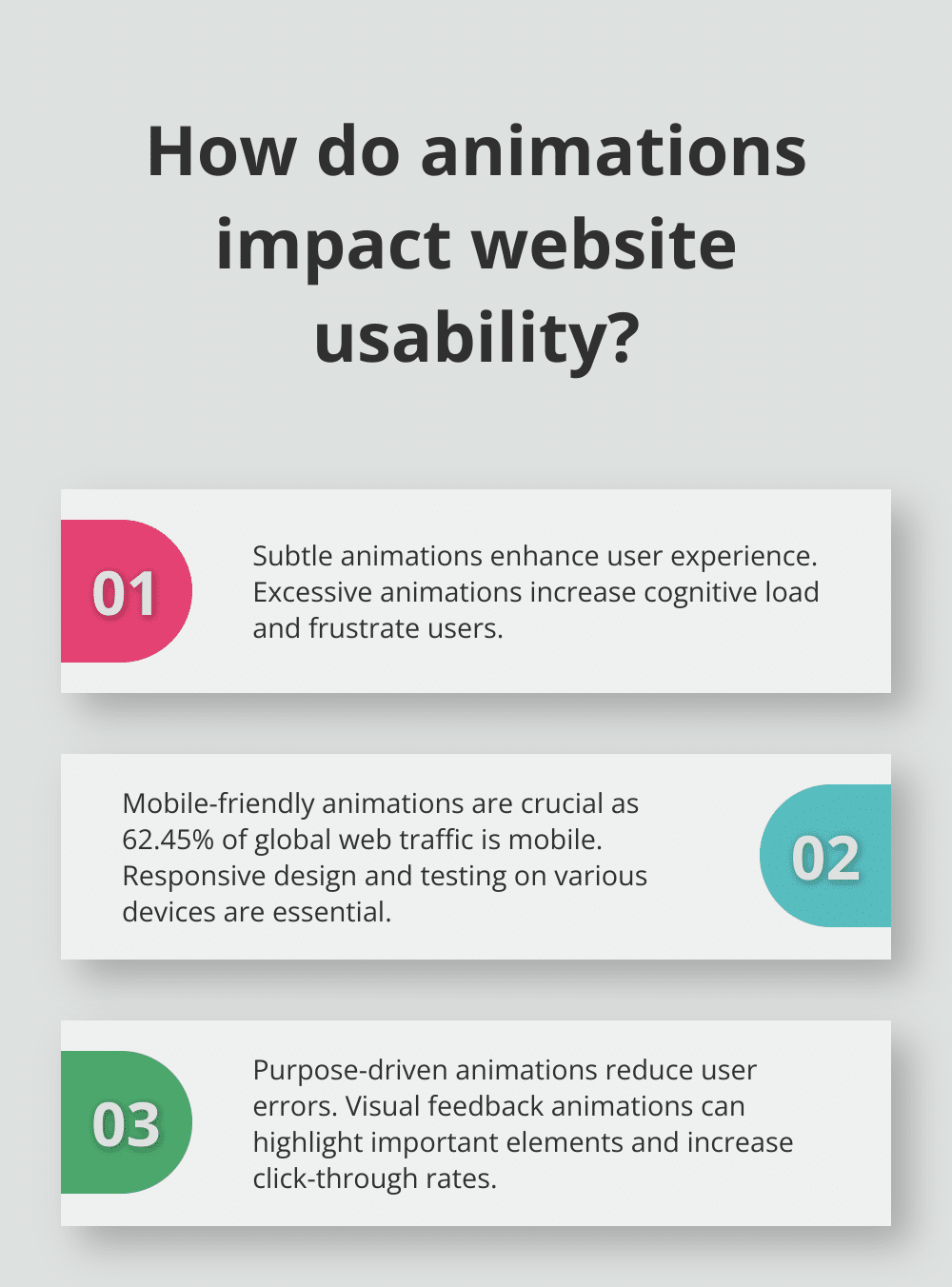
Animations should enhance your WordPress site, not distract from it. A Nielsen Norman Group study found that excessive animations increase cognitive load and frustrate users. Try subtle transitions to guide users through your content. A gentle fade-in effect for images as users scroll can improve engagement without overwhelming visitors.
Prioritize Mobile Optimization
Mobile traffic accounts for 62.45% of global web traffic. This makes mobile-friendly animations a must. Select a plugin with responsive design options. Test your animations on various devices and screen sizes. If an animation causes lag on mobile, disable it for smaller screens.
Focus on Purpose-Driven Animation
Each animation should serve a clear purpose. A UX study by Google revealed that animations providing visual feedback can reduce user errors. Use animations to highlight important elements (such as form submission confirmations or error messages). For e-commerce sites, a subtle shake animation on an “Add to Cart” button can increase click-through rates by drawing attention at the right moment.
Balance Performance and Visual Appeal
Animations can impact your site’s loading speed. Choose lightweight, CSS-based animations over JavaScript-heavy alternatives to minimize this effect. Monitor your site’s performance before and after implementing animations using tools like GTmetrix or PageSpeed Insights.
Customize to Match Your Brand
Select animation plugins that offer a wide range of customization options. This flexibility allows you to create unique animations that align with your website’s aesthetic and functionality. Tailor colors, timing, and effects to complement your brand identity and enhance user experience.
Final Thoughts
WordPress animation plugins offer an exciting way to enhance your website’s user experience. These free tools provide a range of possibilities for increasing user engagement without significant costs. We encourage you to experiment with these plugins on your site, starting small and gradually incorporating more complex animations as you become comfortable with the tools. Pay attention to user feedback and analytics to measure the impact of your animations on engagement and conversion rates.
For those who want to take their WordPress site to new heights, Pluginizer provides access to over 15,000 premium plugins and themes. This includes numerous high-quality animation tools, offering a cost-effective solution for website owners and developers seeking enhanced functionality and performance. With Pluginizer, you can explore a wide range of options to create a more engaging and dynamic website.
The world of website animation is now at your fingertips, regardless of your experience level. You can create a more engaging, dynamic, and memorable website that stands out in today’s competitive digital landscape. Try these powerful tools and follow the guidelines we’ve discussed to transform your static website into an interactive experience for your visitors.